EasyTool USB update
Description
The EasyTool USB provides wireless bidirectional communication with devices in the UHF band.
PC connection
Connect the EasyTool USB to a free USB 2.0 port on your computer or laptop. The drivers will install automatically.
To determine the COM port number, right-click on the Start menu and select Device Manager.
In Device Manager, expand the Ports (COM & LPT) section.
The EasyTool USB device will be listed there with its assigned COM ports numbers in parentheses:

As a rule, COM port numbers for USB Serial Device are assigned sequentially, with the first port used for terminal mode and the second port used for Serial to Device or Serial to WMBUS modes
If necessary, you can change the sequence numbers in the COM port settings
Terminal mode
Terminal mode is a mode of operation in which the user interacts with the EasyTool USB device via a terminal program (e.g., Tera Term) by entering text commands and receiving text responses. This mode provides direct control of the device and allows you to perform various operations, including software updates via the X-modem protocol, diagnostics, and parameter configuration.
-
Getting started
We launch the Tera Term program. In the window, we select a connection via the COM port and the corresponding port, in this case, COM27:
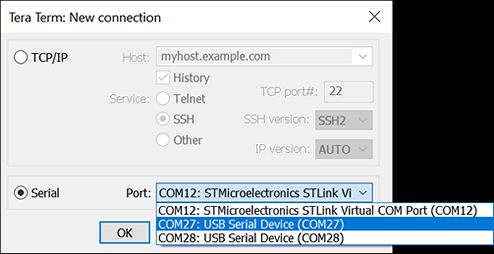
In the window that opens, press Enter, and if the message This is bridged interface is seen:

this means that you have selected the wrong port and need to use a second one. Repeat the connection selection for the COM port and the corresponding port.
In terminal mode, all commands must be confirmed by pressing Enter. Commands should be entered completely and without corrections. If an incorrect command is entered, you must press Enter and enter the command again.
In the window that opens, press Enter to verify that the port has opened correctly. The command line header FSK> should then appear:

Enter the command dongle - the command line header will change to usb>:

-
Software Update Process
Enter the command xdn – the program will switch to working with the X-modem protocol:

Switching to Transmission mode: File -> Transfer -> XMODEM -> Send...:

In the file manager, select the update file with the extension *.oef:
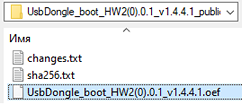
After selecting the update file and confirming the transfer, you must wait for the file transfer to complete:

The OK response indicates that the update file was received successfully:
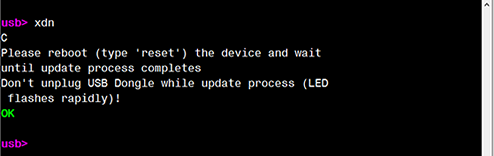
After the command line header usb> appears, enter the command fwcheck to check the software temp version:
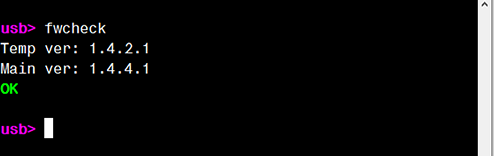
Next, you should reboot the device with the reset command.
After reboot the EasyTool USB will be unavailable for at least 1 minute.
After confirming the reset command, the software update is processed
It is IMPORTANT not to unplug the EasyTool USB from the computer or laptop USB port
-
Checking the success of the software update
Press Enter to check that the port is open. The command line header FSK> will be displayed.
Enter the command dongle - the command line header will change to usb>.
Further, enter the command fwcheck to check the success of the software update:

Versions Temp and Main should be identical