ORN-TWM-LW868 update
The device can be connected in Active and Warehouse modes.
In Active mode, the device is ready to connect via FSK using EasyTool USB.
In Warehouse mode, you need to activate the mechanism using EasyTool USB:
For activation, hold a magnet to the Hall sensor for 1–2 seconds; a light indicator lasting 300 ms will confirm success.
ORN-TWM-LW868 is ready for connection via FSK.
Preparing for operation
Connect the EasyTool USB to a free USB 2.0 port on your computer or laptop. The drivers will install automatically.
To determine the COM port number, right-click on the Start menu and select Device Manager.
In Device Manager, expand the Ports (COM & LPT) section.
The EasyTool USB device will be listed there with its assigned COM ports numbers in parentheses:

As a rule, COM port numbers for USB Serial Device are assigned sequentially, with the first port used for Terminal mode and the second port used for Serial to Device or Serial to WMBUS modes
If necessary, you can change the sequence numbers in the COM port settings
Device update
We launch the Tera Term program. In the window, we select a connection via the COM port and the corresponding port:
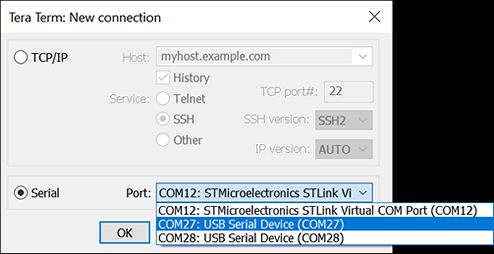
In the window that opens, press Enter, and if the message This is bridged interface is seen:

this means that you have selected the wrong port and need to use a second one. Repeat the connection selection for the COM port and the corresponding port.
In terminal mode, all commands must be confirmed by pressing Enter. Commands should be entered completely and without corrections. If an incorrect command is entered, you must press Enter and enter the command again.
In the window that opens, press Enter to verify that the port has opened correctly. The command line header FSK> should then appear:

-
Connection
Example of connecting and updating a device with Dev_EUI и FSK_Key
Dev_EUI (E3E454ECDF522D2B) - unique device identification number
FSK_Key (80285B8E33FF0A15AA0DC11AC04BCC62) - access key
Set the access key for the device - enter the command: set dlkey E3E454ECDF522D2B 80285B8E33FF0A15AA0DC11AC04BCC62
Than, enter the command list and found the added device with Dev_EUI E3E454ECDF522D2B ( KEY is coloured green):
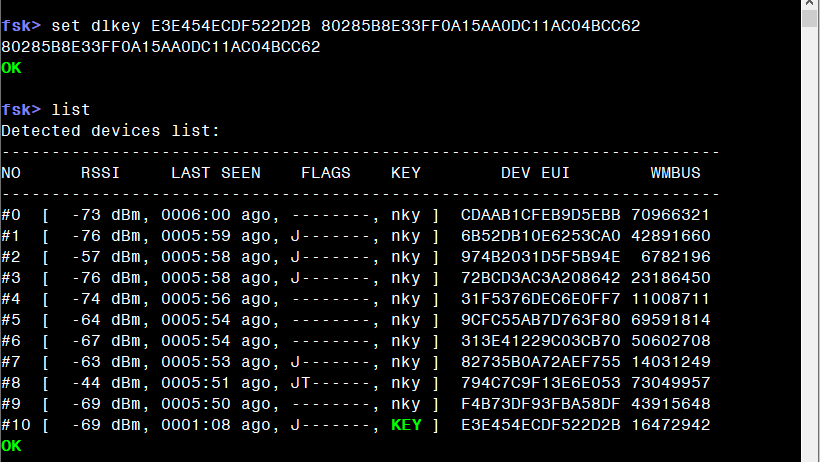
For direct connection, enter the command select E3E454ECDF522D2B , press Enter, and then select FSK channel (recommend from 11 to 13) connect 13:

After changing the command line title to client>:

The timeout between operations cannot exceed 15 seconds. If exceeded, the terminal device will terminate the communication session, and reconnection to the device will be required
Next, check the current software version ORN-TWM-LW868.
-
Check current FW version
To check the current version of the software, enter the command fwcheck:

Temp ver - contains the software version in the temporary part of the memory Main ver - contains the software version in the main part of the memory
-
Software Update Process
Enter the command xdn – the program will switch to working with the X-modem protocol:

Switching to Transmission mode: File -> Transfer -> XMODEM -> Send...:

In the file manager, select the update file with the extension *.oef:

After selecting the update file and confirming the transfer, you must wait for the file transfer to complete:

Next, you should reboot the device with the ORN-TWM-LW868 reboot command.
-
Verifying a successful update
After reboot reconnect to the device and check that the software update was successful:

Versions Temp and Main should be identical