MQTT
The MQTT integration connects an ONS application to your MQTT broker: the server publishes the uplinks of the application's devices to the broker and accepts downlink commands from it. An external system only needs an MQTT client — no WebSocket API connection is required for this. The integration is set up on the application page of the web interface; an application can have one MQTT integration.
How to connect
- Open the application in the "Applications" section of the web interface.
- In the "Integrations" block, click "Add" on the MQTT card.
- Fill in the fields, see the table below. "MQTT Server" and "QoS" are required.
- Turn on the "Active" switch. It is off for a new integration, and the server does not start a disabled integration.
- Click "Save".
The server applies saved settings immediately: it restarts the integration with the new configuration. To change the settings, click "Edit" on the card; to delete the integration, click "Удалить" (Delete).
The icon on the card shows the broker connection state: Connected — connected, Disconnected — no connection to the broker, Error — the broker refused the connection, for example because of a wrong username or password. In the current version Error does not last long: after the refusal the broker closes the connection and the icon switches to Disconnected. If the icon shows Disconnected while the broker is reachable, check the username, password and access rights on the broker, then save the integration again, see "Good to know".
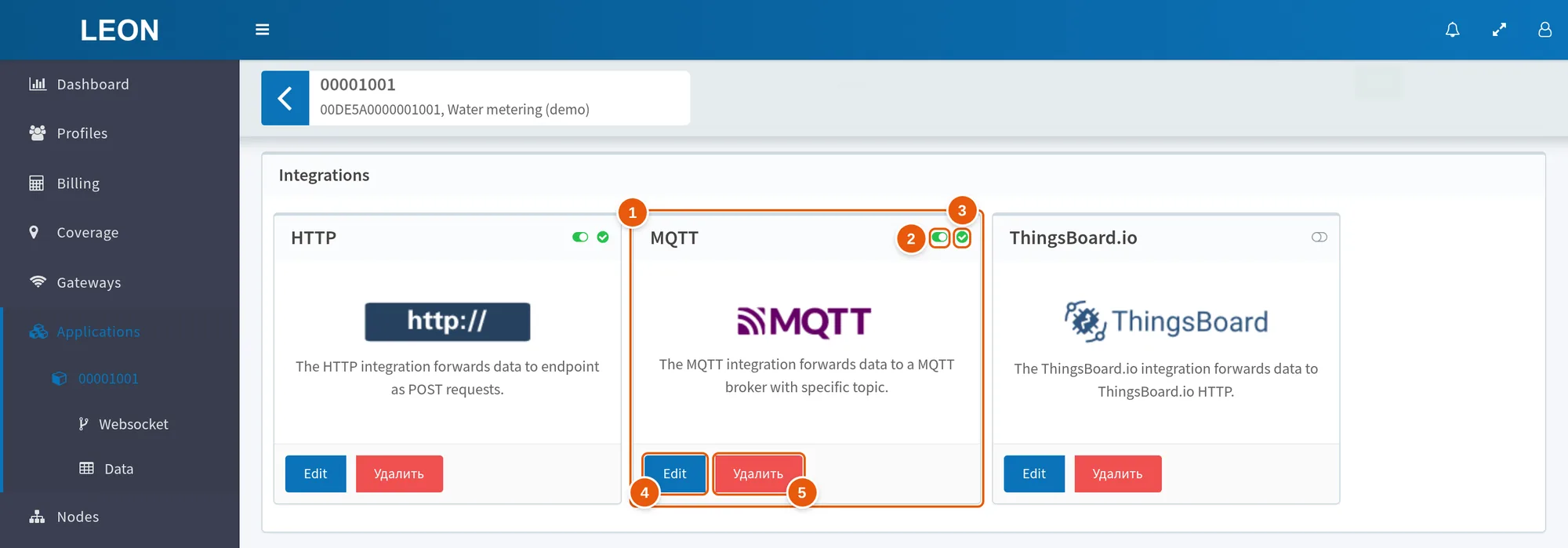
- MQTT — the MQTT integration card in the "Integrations" block.
- Enable icon — green if the integration is enabled with the "Active" switch, grey if it is disabled.
- State icon — the broker connection state: Connected, Disconnected or Error.
- Edit — open the integration settings. For an application without an MQTT integration, the "Add" button is in this place.
- Удалить (Delete) — delete the integration.
Integration fields
| Field | What it sets |
|---|---|
| "MQTT Server" | Broker address: tcp:<host>:<port> — unencrypted, tls:<host>:<port> or ssl:<host>:<port> — over TLS. For example, tcp:broker.example.com:1883 or tls:broker.example.com:8883. The host is a domain name or an IPv4 address |
| "Username", "Password" | Broker credentials, if the broker requires them |
| "QoS" | A number from 0 to 2. Has no effect in the current version, see "Good to know" |
| "Client ID" | MQTT client identifier of the integration. If the field is empty, the server generates the ID itself — of the form ons-mqtt/<random number> |
| "Topic Msg Up" | Template of the topic the server publishes uplinks to. Empty field — application/{app_id}/device/{DevEUI}/rx |
| "Topic Msg Down" | Template of the topic the server accepts downlink commands from. Empty field — application/{app_id}/device/{DevEUI}/tx |
| "CA Certificate", "TLS Certificate", "TLS Key" | Files for TLS. Have no effect in the current version, see "Good to know" |
| "Active" | Enables the integration. Off for a new integration |
The "?" icon next to the topic fields opens a hint with the placeholders and examples.
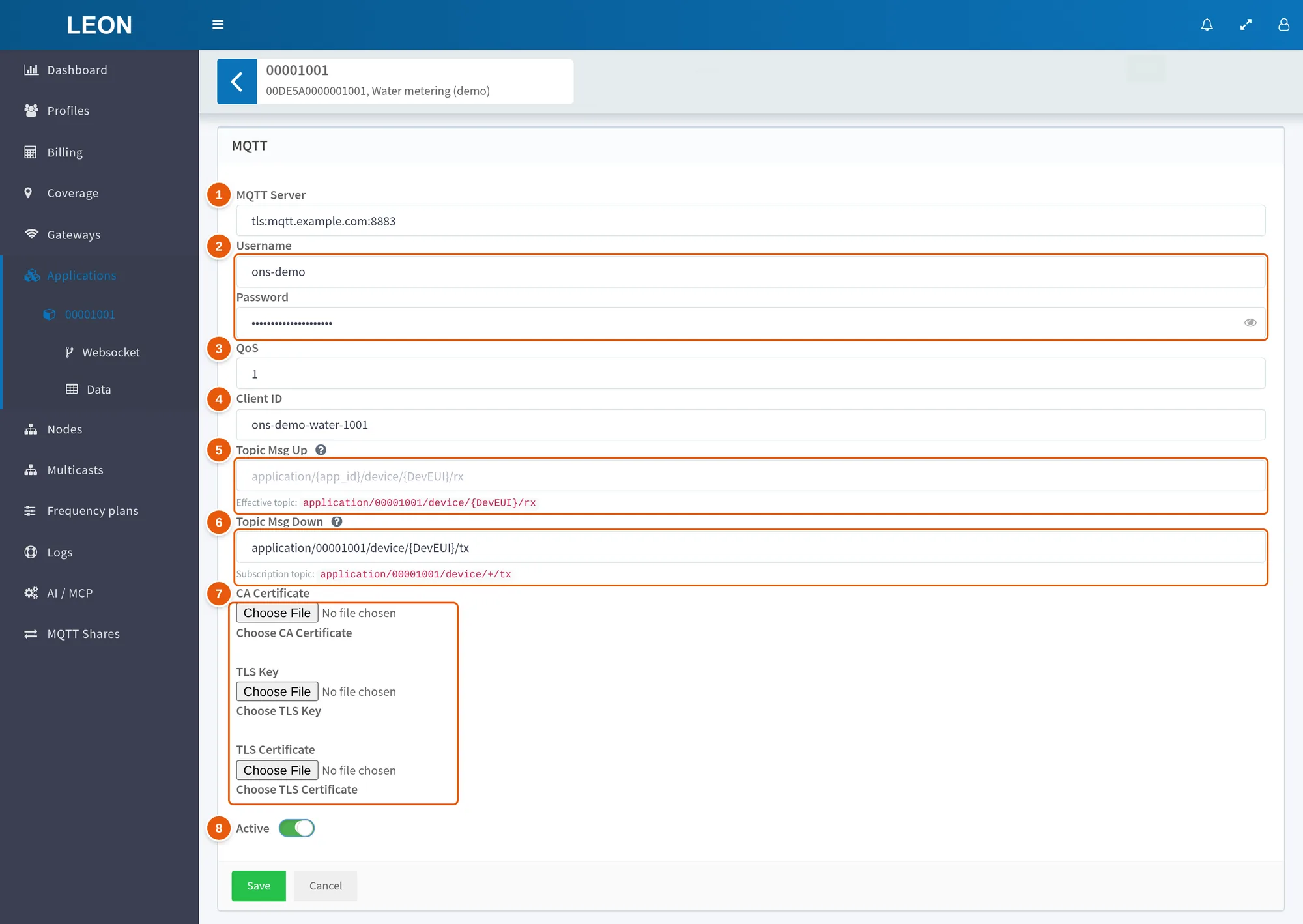
- MQTT Server — the broker address, here
tls:mqtt.example.com:8883. Required. - Username, Password — broker credentials.
- QoS — required; has no effect in the current version.
- Client ID — MQTT client identifier of the integration. Empty field — the server generates the ID itself.
- Topic Msg Up — the uplink topic template. Here the field is empty: the default template is shown in grey, and under the field is the "Effective topic" with the application's App ID.
- Topic Msg Down — the command topic template, with the App ID filled in. Under the field is the "Subscription topic" the server subscribes to.
- CA Certificate, TLS Key, TLS Certificate — files for TLS; have no effect in the current version.
- Active — enables the integration.
Uplink: what the server publishes
The server publishes every received uplink — confirmed and unconfirmed — from the devices of its own application and of the applications in the "Accessible apps" field.
The topic is built from the "Topic Msg Up" template for every message:
| Placeholder | What is substituted |
|---|---|
{app_id} | App ID of the application the device belongs to |
{DevEUI} | DevEUI of the device |
{fport} | Application port (FPort) of the frame |
{event} | up |
The server replaces + and # in the substituted values with _. A template without placeholders sends all messages to one topic. The form shows the resulting topic with the application's App ID under the field.
With the default template, an uplink of device 6F1E570FFE14DBFC from application 77179F01 goes to the topic application/77179F01/device/6F1E570FFE14DBFC/rx. To receive the uplinks of all devices of the application, subscribe to application/77179F01/device/+/rx.
The message body is JSON of the same form as the WebSocket API realtime_data message: cmd, devEui, devAddr, data (the frame, reception parameters, JS codec result, tags), battery_level, margin, join_request_time. The fields and an example are in the description of the realtime_data message.
Downlink: commands through the broker
The server subscribes to the topic from the "Topic Msg Down" template with every placeholder replaced by +. With the default template this is application/+/device/+/tx; the form shows the subscription topic under the field. A command is a JSON object; the cmd field sets the action: tx — queue a frame, cancel — withdraw.
The server identifies the device by DevEUI: from the EUI field of the command or, without it, from the {DevEUI} position in the topic. If both are set and differ, the command is dropped. Frames can be queued for the devices of the integration's application and of the applications in the "Accessible apps" field. For the integration to accept only the commands of its own application, put the App ID into the topic template.
Queue a frame
Fields not marked as required may be omitted.
| Field | Type | Description |
|---|---|---|
cmd | string | Required. tx |
port | integer | Required. Application port (FPort), 1–223 |
data | string | Exactly one of data or object is required. A command with both fields is dropped. Payload in hex. Size — no more than the frequency plan limit for the data rate from dr or, without dr, for the data rate of one of the device's stored uplinks: in the current version the server does not guarantee it is the last one, so the limit may differ from the max_dl_data_req answer. Pass dr for a predictable check |
object | object | Exactly one of data or object is required. A command with both fields is dropped. Data as an object. The server converts it to hex with the encodeDownlink function of the application's JS codec; the codec may choose the port itself |
EUI | string | DevEUI of the device. May be omitted if the topic contains the DevEUI |
confirmed | bool | Confirmed frame. Default false. Has no effect in the current version, see "Good to know" |
ttl | integer | How many seconds the frame may wait in the queue, greater than 0. Default 3600 (1 hour). A frame that has not gone out gets status 8 (Expired) |
realTime | bool | Send only in the nearest receive window, no later than 2 seconds after the server accepted the command; otherwise the frame is dropped with status 5 (Realtime Late). ttl does not apply to such a frame. Default false |
dr | string | Data rate as a string, for example SF7BW125. The server does not accept a DR number. Without the field the server chooses the data rate itself |
freq | number | Transmission frequency, MHz, within the device's frequency plan. Without the field the server chooses the frequency itself |
gatewayEui | string | EUI of the gateway to transmit the frame through |
power | integer | Transmission power, dBm, greater than 0 and not above the frequency plan maximum. Has no effect in the current version, see "Good to know" |
A command to the topic application/77179F01/device/6F1E570FFE14DBFC/tx — the server takes the DevEUI from the topic:
{
    "cmd": "tx",
    "port": 2,
    "data": "0a1b2c"
}
A command with the DevEUI in the body, a data rate and a waiting time of one day:
{
    "cmd": "tx",
    "EUI": "6F1E570FFE14DBFC",
    "port": 2,
    "data": "0a1b2c",
    "dr": "SF7BW125",
    "ttl": 86400
}
The frame enters the same queue as frames from the WebSocket API. A class A device gets it after its next uplink, a class C device right away, see Device classes.
Withdraw a frame
Only frames in status 0 (Scheduled) or 4 (Realtime Scheduled), queued within the last month for the devices of its own application, are withdrawn. A withdrawn frame gets status 6 (Canceled).
| Field | Type | Description |
|---|---|---|
cmd | string | Required. cancel |
dataId | integer | dataId or EUI with allScheduled is required. Queue item identifier — to withdraw one frame. The same identifier as in cancel_downlink_req. This is not the dataId from frame status messages: that one identifies the frame, and a withdrawal with it does not work. The server does not return the queue item identifier over MQTT |
EUI | string | DevEUI of the device. To withdraw all frames of the device, pass it in the command: the DevEUI from the topic does not work for this |
allScheduled | bool | true — withdraw all scheduled frames of the device. A command with EUI but without allScheduled and without dataId is rejected |
Withdrawing one frame also needs the DevEUI — in the topic or in the EUI field.
{
    "cmd": "cancel",
    "EUI": "6F1E570FFE14DBFC",
    "allScheduled": true
}
Downlink frame statuses
The server publishes no responses to commands. Frame statuses are not published by default either: they are enabled by the downlink_status_enabled parameter in the integration configuration. The web interface form has no such parameter — the ONS server administrator can enable it.
With the parameter enabled, the server publishes a message on every frame status change, except queuing (0 and 4) and withdrawal (6):
- The default topic is
application/{app_id}/device/{DevEUI}/tx/status; another template is set by thetopic_msg_down_statusparameter. - Statuses go to the integration of the application the device belongs to.
- The body contains the fields of the WebSocket API
downlink_statusmessage withoutcmd:devEui,devAddr,dataId,downlink_status,downlink_status_text,downlink_status_time,emit_ts. Codes and names are in the Frame status section. A command sent over MQTT does not return thedataId. - The server keeps unpublished statuses for 5 minutes: if the integration stays disconnected from the broker longer, they are lost.
Good to know
- There is no response to a command. The server drops an invalid command — without
port, withdatanot in hex, with bothdataandobject, for an unknown device, with adroutside the frequency plan, with data above the limit — and writes the reason only to its own log. Whether the frame was queued is shown by the WebSocket API commandget_downlink_data_req. - Some settings have no effect yet.
- "QoS": the server publishes uplinks and statuses with QoS 0. The broker does not acknowledge receipt, and a message sent at the moment the connection drops may be lost. Missed uplinks can be fetched with the
get_data_reqcommand. - "CA Certificate", "TLS Certificate", "TLS Key": the server stores the files but does not pass them when connecting to the broker. A broker that requires a client certificate cannot be connected through the integration.
confirmed: the frame goes out as unconfirmed (Unconfirmed Data Down). Final status 3 (Delivered) is an acknowledgement from the gateway, not from the device.power: the gateway transmits with the default power of the frequency plan.
- "QoS": the server publishes uplinks and statuses with QoS 0. The broker does not acknowledge receipt, and a message sent at the moment the connection drops may be lost. Missed uplinks can be fetched with the
- After the connection to the broker drops, the integration may not recover by itself. While there is no connection, uplinks accumulate on the server. A few seconds after the drop the server tries to reconnect. If the broker is still unavailable at that moment, in the current version the integration does not recover by itself: it stays disconnected while uplinks keep accumulating. The same happens if the broker is unavailable when the integration starts. Once the broker is available again, open the integration with "Edit" and click "Save": the server restarts it and sends the accumulated messages after connecting. By default the queue is deleted together with its data if nobody reads it for 14 days.
- Do not reuse the integration's "Client ID". If your client connects to the broker with the same ID, the broker keeps dropping one of the connections, and the integration loses its connection.
- Put the App ID into the command topic template. For the integration to accept only the commands of its own application, put the App ID instead of
{app_id}into "Topic Msg Down", for exampleapplication/77179F01/device/{DevEUI}/tx.
See also
- Applications — the application page, the "Integrations" block and the "Accessible apps" field.
- Subscribe to real-time data — the fields of the
realtime_datamessage. - Sending data to a device — the frame queue and frame statuses.
- Device classes — when a frame reaches the device.
cancel_downlink_req— withdrawing frames and the queue item identifier.