Login
The ONS web interface works only after you sign in with a username and password. This page explains the login form messages, how long a login lasts, and how to change the password and sign out. User accounts are created in the Profiles section.
How to sign in
- Open the server's web interface. Until you sign in, its sections do not open: the interface redirects to the login page
/loginwith the caption "SIGN IN TO CONTINUE". - Enter the username in the "Enter username" field and the password in the "Password" field.
- Click "Login". While the server checks the credentials, the button reads "Loading".
After signing in, the dashboard opens — /dashboard.
The interface language is chosen from the list in the top right corner of the login page: "Русский" or "English". The browser remembers the choice. After signing in, the language is changed in the user menu.
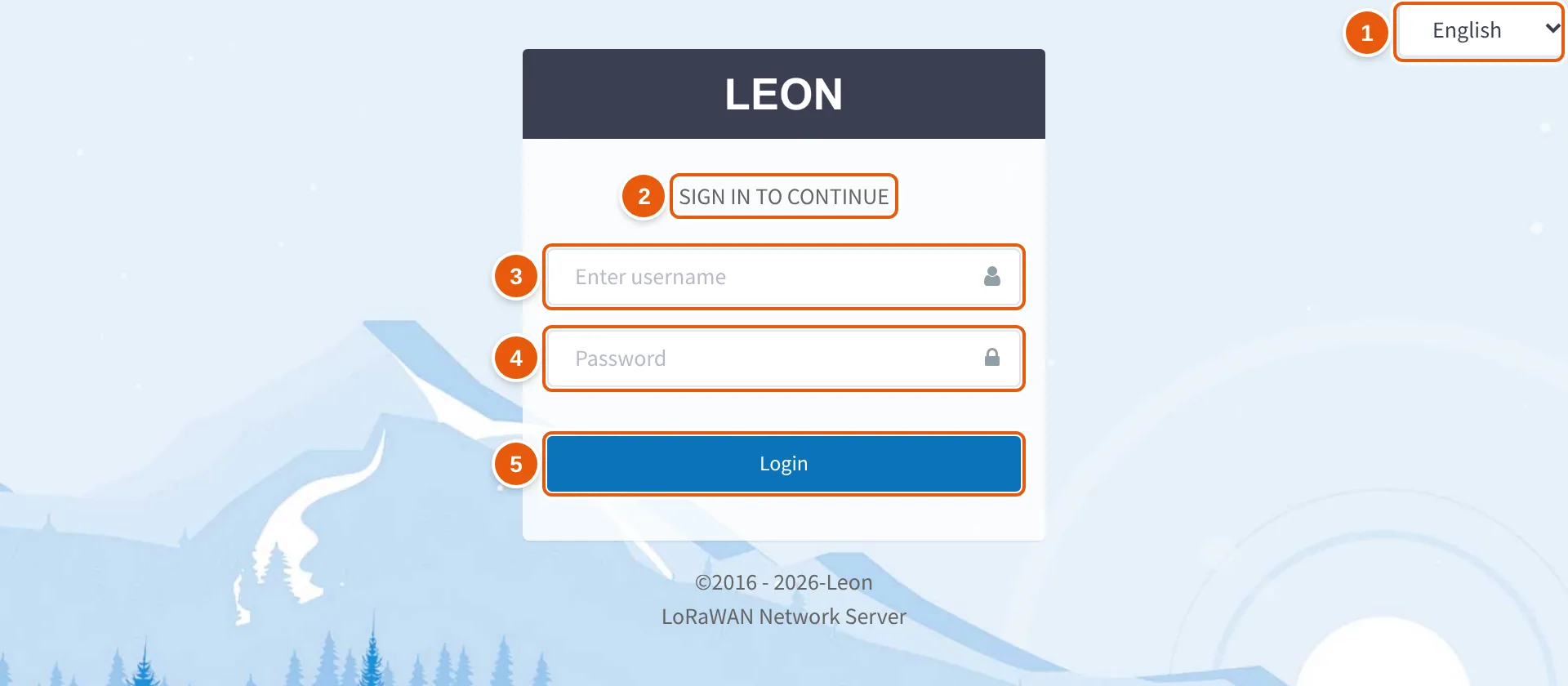
- The language list — "Русский" or "English"; the browser remembers the choice.
- The SIGN IN TO CONTINUE caption of the login page
/login. - Enter username — the username field.
- Password — the password field.
- Login — sends the username and password; while the server checks the credentials, the button reads "Loading".
Login form messages
| Message | When it appears |
|---|---|
| "This field is required" | The username or password field is empty. No request is sent to the server |
| "Username or password is incorrect" | The server found no active account with this username and password. A user of a disabled account gets the same message — for example, of a deleted profile: deletion does not erase a profile but marks it inactive |
| "Server error" | The server did not respond or responded with something other than JSON, for example an error page |
| No message, the button reads "Login" again | The server rejected the request for another reason, for example the username or password consists of spaces only |
How long a login lasts
- At sign-in the server issues a token (JWT) valid for 5 days. The interface keeps the token in the browser and does not renew it.
- Closing the tab or the browser does not end the login: the token stays in the browser until you sign out.
- When the server rejects the token with code 401 — for example, because the token has expired — the interface erases the saved login data and opens the login page. After you sign in again, the dashboard opens, not the page you were on.
User menu
The menu opens from the user icon in the top right corner of the interface. The top of the menu shows the account's first name, last name and email. If the Billing section has been opened and the page has not been reloaded since, usage lines appear below them — for devices and for gateways: "used / quota" with a progress bar. Then come the items:
| Item | What it does |
|---|---|
| "Profile settings" | Change the email, first name and last name. All three fields are required; the first and last names must be at least 2 characters long. The button is "Submit" |
| "Change password" | Change the password, see Changing the password |
| "Language: …" | Choose the interface language: "Русский" or "English" |
| "Exit" | Sign out of the interface, see Signing out |
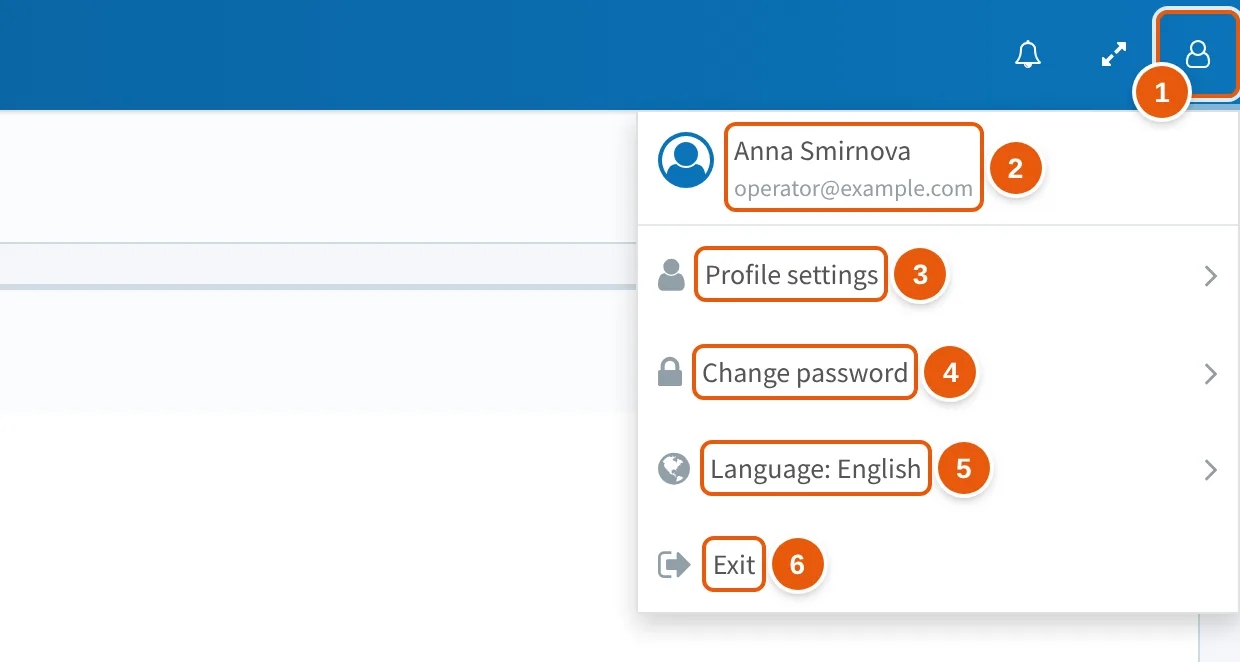
- The user icon in the top right corner — opens the menu.
- The account's first name, last name and email.
- Profile settings — change the email, first name and last name.
- Change password — see Changing the password.
- Language: … — choose the interface language: "Русский" or "English".
- Exit — sign out of the interface, see Signing out.
Changing the password
- Open the user menu and choose "Change password".
- Fill in the three fields; the requirements are in the table below.
- Click "Submit". While any field is empty or the old or new password is shorter than 6 characters, the button is disabled.
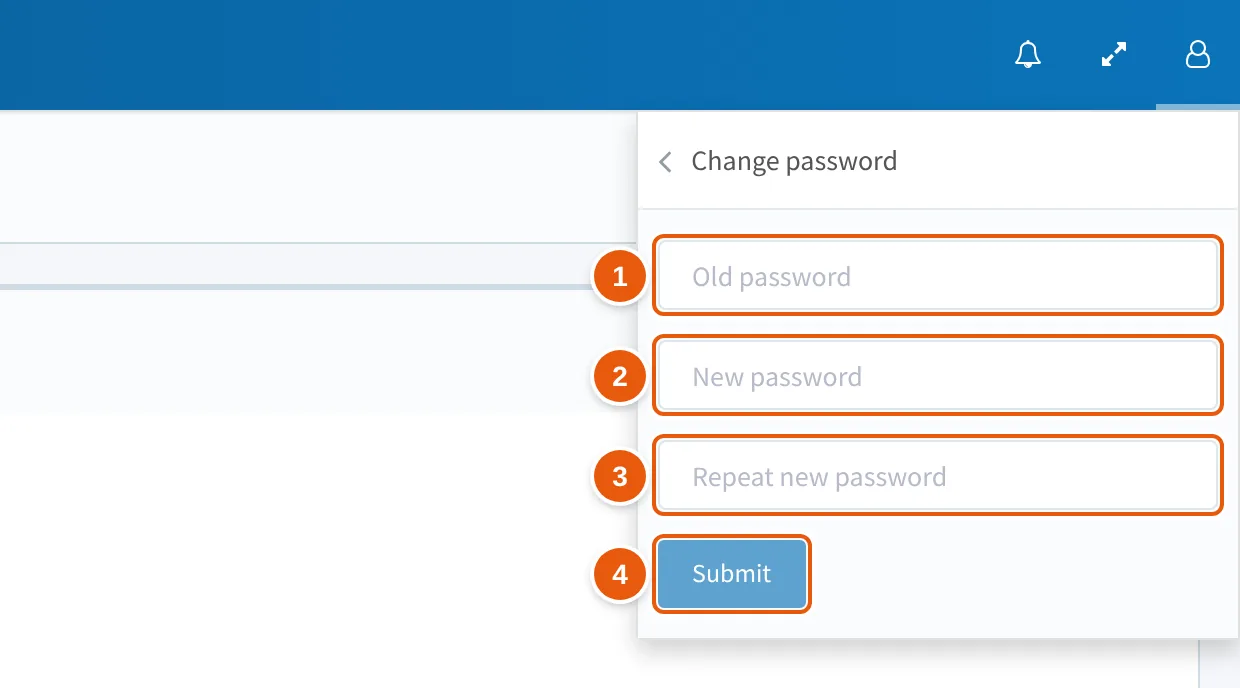
- Old password — the current password of the account.
- New password — its value becomes the new password.
- Repeat new password — a repeat of the new password; it is not sent to the server.
- Submit — disabled while any field is empty or the old or new password is shorter than 6 characters.
| Field | Check in the form |
|---|---|
| "Old password" | Required, at least 6 characters |
| "New password" | Required, at least 6 characters |
| "Repeat new password" | Required. If it does not match the new password, "Passwords do not match" appears under the field |
The server checks more than the form does:
- the old password must be correct;
- the new password must pass the standard password strength checks: at least 8 characters, not similar to the username, first name, last name or email, not on the list of common passwords and not entirely numeric.
On success, "Password changed successfully" appears and the menu returns to the list of items. If the server rejects the request, "Failed to change password" appears with no reason given: both a wrong old password and a new password that fails the server check look like this.
The interface only highlights a password mismatch and does not enforce it: while "Passwords do not match" is shown, the "Submit" button stays enabled. The repeated password is not sent to the server — the value of the "New password" field becomes the new password.
Signing out
The "Exit" item in the user menu:
- ends the web interface login and the session through which the login is passed to external OAuth clients, see below;
- reloads the page — the login page opens.
Signing in for external OAuth clients
External clients that get access to ONS via OAuth — for example, MCP clients — open the server's authorization page in the browser. If there is no server session yet, the server takes the login from the web interface in the same browser; during the check an "Authenticating..." page is shown.
- If you are already signed in to the web interface and the token is valid, authorization continues without entering the password.
- If you are not signed in or the server rejects the token, the regular login page opens. After you sign in, the browser returns to authorization.
Good to know
- The username and password do not work for the WebSocket API: it is accessed with an application ID and an application token — see Connection.
- The dashboard, which opens after sign-in, is available to a user with one of the roles
staff,adminormonitoring; all three profile types have such a role. Without these roles, the interface redirects to the login page again after sign-in.
See also
- Profiles — creating user accounts, profile types and logging in as a child profile.
- Dashboard — the start page after sign-in.
- Connection — connecting an external system to the WebSocket API with an application token.