Gateways
The Gateways section of the ONS web interface is the list of LoRaWAN gateways and a card for each of them. Here gateways are registered manually or imported from a file, given a place and an antenna for the coverage calculation, checked for being online, and their airtime load and received frames are viewed. The gateway itself connects to the server over the Semtech UDP protocol; for the server to match the gateway's packets with the record in this section, the EUI in the record must match the gateway's Gateway ID.
Where the section is and who can access it
The Gateways menu item opens the gateway list at /gateways. A new gateway is added on the /gateways/add page. A gateway card opens at /gateways/<EUI>; the gateway title in the list links to it.
| What | Who can access it |
|---|---|
| The Gateways menu item and the section itself | The superuser (superuser) and the admin and monitoring groups. A Dealer belongs to the admin group |
| The "Add gateway" button; the Delete, Export and Update coverage actions | The superuser and the admin and gateway_admin groups |
| The Permissions action | The superuser and the dealer group |
| The Import button | Users with the staff flag |
| Saving the gateway form | The superuser and the admin and application_admin groups. For a saved gateway — according to the rights on that gateway returned by the server |
The interface shows the menu item only if the user has one of the section's groups. Without them, opening /gateways/... directly leads to the login page /login.
The list contains only active, that is, not deleted, gateways that the user owns or has the view right on (view_gateway). The superuser sees all active gateways. The "Total" counter follows the same rules. How to give another profile access to gateways is described in Profiles and in the Permissions action below.
The server returns the rights on a saved gateway together with the gateway, and they take precedence over groups: the owner — the user who created the gateway — may do everything, others may do what they were granted: view, add, change, delete. If the only one of the listed groups the user has is gateway_admin, they see the "Add gateway" button, but the add form opens without a save button.
The server also checks the rights:
- creating a gateway requires the
add_gatewayright; changing it requires thechange_gatewayright plus ownership of the gateway or a right on that gateway; - the bulk actions Delete, Export, Update coverage and Permissions require the
add_gatewayright, so a Monitoring profile cannot run them; - a user can delete their own gateway or a gateway they have the
delete_gatewayright on, and the superuser can delete any gateway.
Connecting a gateway to ONS
ONS receives gateway packets over the Semtech packet forwarder protocol (Semtech UDP) on UDP port 1700. The server listens on one port for all gateway packets and handles three packet types:
| Packet | What it is |
|---|---|
| PUSH_DATA | Uplink frames the gateway received over the air |
| PULL_DATA | Keepalive: the gateway sends it on its own every N seconds — the keepalive period |
| TX_ACK | The gateway's acknowledgment of a downlink frame received from the server |
- Add the gateway in this section, see Adding a gateway. In the EUI field, enter the Gateway ID from the gateway's packet forwarder settings.
- In the packet forwarder settings, set the ONS server address and port 1700.
- Make sure that the gateway's "Last seen" appears in the gateway list and keeps updating.
EUI. The server takes the gateway identifier from bytes 4–11 of the header of every Semtech UDP packet and converts it to an uppercase hexadecimal string. It uses this string to look up an active gateway with that EUI. If the EUI in ONS does not match the gateway's Gateway ID, "Last seen", IP, RTT and statistics are not linked to the gateway.
Keepalive and NAT. In the Semtech protocol the gateway starts the exchange: with PULL_DATA packets it opens and keeps open the return network route to the gateway, including through NAT. The protocol assumes the gateway may be behind a NAT or a firewall that blocks incoming connections. The server can send a downlink frame to the gateway (a PULL_RESP packet) only after the first PULL_DATA — to the address it came from.
Adding a gateway
- In the gateway list, click "Add gateway".
- Fill in the fields of the "Add gateway" form.
- Click "Add". The "Gateway added" notification appears, and the interface returns to the list.
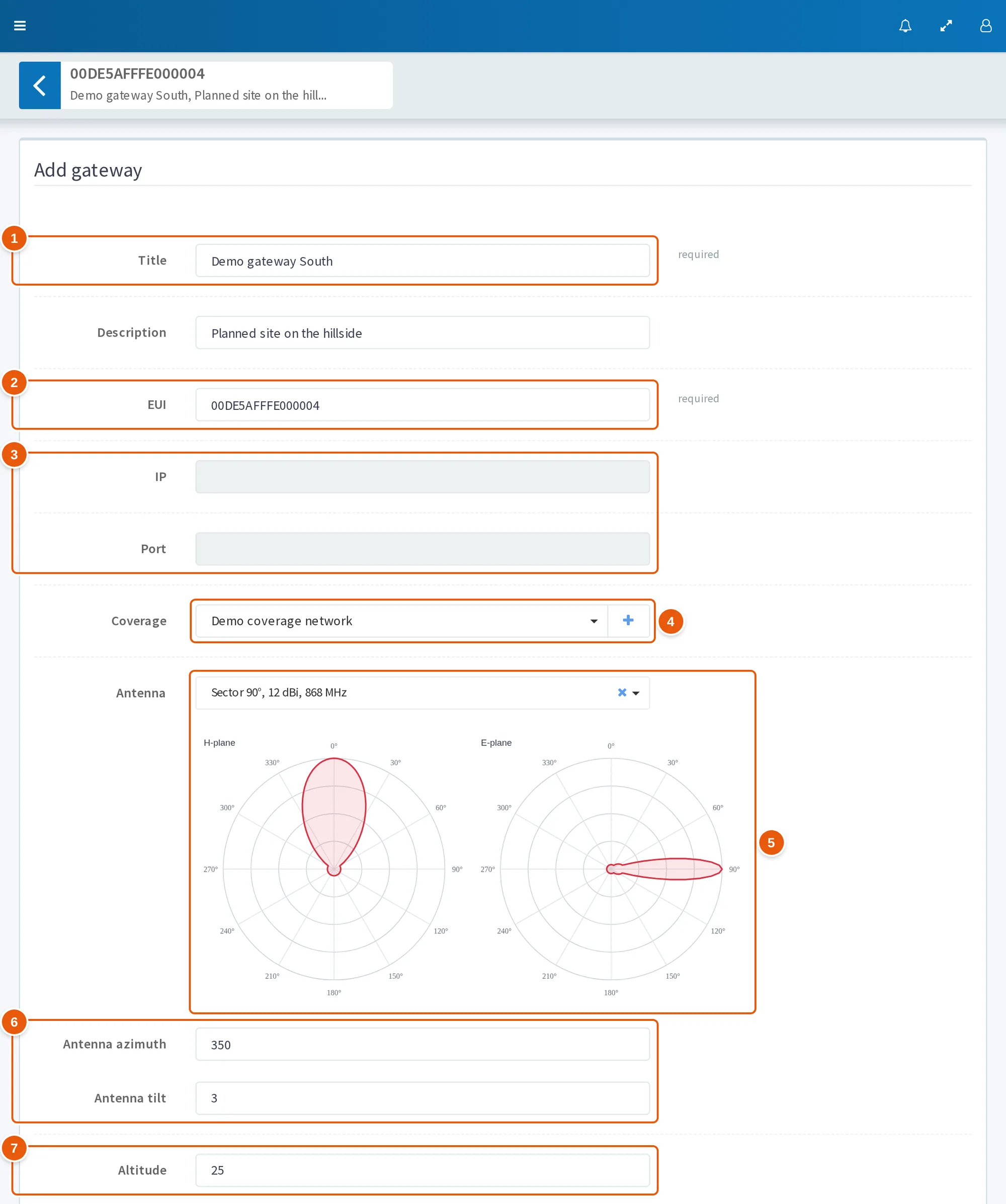
- "Title" — a required field.
- "EUI" — a required field: the gateway's Gateway ID, 16 uppercase hexadecimal characters.
- "IP", "Port" — read-only: the address the gateway's last keepalive came from.
- "Coverage" — a coverage network from the list; the "+" button opens the "Add coverage" window.
- "Antenna" — an antenna from the catalog and its radiation patterns in the horizontal and vertical planes.
- "Antenna azimuth", "Antenna tilt" — from 0 to 360 and from −360 to 360.
- "Altitude" — the gateway height above ground in meters; the form fills in 0.
| Field | What it sets |
|---|---|
| "Title" | Required. Up to 256 characters |
| "Description" | Up to 256 characters |
| "EUI" | Required. Exactly 16 uppercase hexadecimal characters — the gateway's Gateway ID |
| "IP", "Port" | Read-only: the address the gateway's last keepalive came from. After the first keepalive the port is 0, see Gateway list |
| "Coverage" | A coverage network from the list. The "+" button opens the "Add coverage" window and creates a network with the given title |
| "Antenna" | An antenna from the catalog. Once it is selected, the form shows the antenna's radiation patterns in the horizontal and vertical planes |
| "Antenna azimuth" | From 0 to 360 |
| "Antenna tilt" | From −360 to 360 |
| "Altitude" | The gateway height above ground in meters — that is how the coverage calculation service receives it. The form defaults to 0, see below |
| "Place" | A point on the map |
| "Disabled", "Indoor gateway", "Planning only" | Checkboxes, see below |
| "Images" | Photos of the gateway: .jpg, .jpeg, .png files, several allowed |
| Additional fields | Additional gateway fields, if any are defined |
If the EUI is entered incorrectly, one of these messages appears under the field:
Enter a valid hexfigure with uppercase: e.g. "FF0022"— the value contains characters other than 0–9 and A–F; lowercase a–f is an error too;- "Minimum length is 16 characters (now N)" — there are fewer than 16 characters.
If the EUI is already taken by an active gateway, the server rejects the save with the error A gateway with that eui already exists. (in the Russian server localization — «Шлюз с таким eui уже существует.»). The interface shows a server error as an "Error" pop-up notification.
For a saved gateway the form is called "Edit gateway", and it has two buttons: "Save" — the "Gateway updated" notification and a return to the list — and "Save and continue editing". The buttons are active only if the form is filled in correctly and has changes. Without the change right the form fields are read-only and there are no buttons.
Place, antenna, altitude and flags
The place, antenna and altitude are needed mainly for the coverage calculation. It is done by the external CloudRF service using the parameters of the gateway's coverage network, the coordinates, the altitude, and the antenna azimuth and tilt. The calculation is described in detail on the Coverage page.
Place. Fill in the "Latitude" and "Longitude" fields and click "Go", or turn on the marker button and click on the map. The trash can button turns on delete mode: clicking the marker removes the point. Once a marker is set, the field under the map contains GeoJSON of the form {"type":"Point","coordinates":[<longitude>, <latitude>]} — longitude comes first. If the gateway's coverage has already been built, the map in the card shows its image over the base map (opacity 0.7); the "Refresh" button on the map reloads the image.
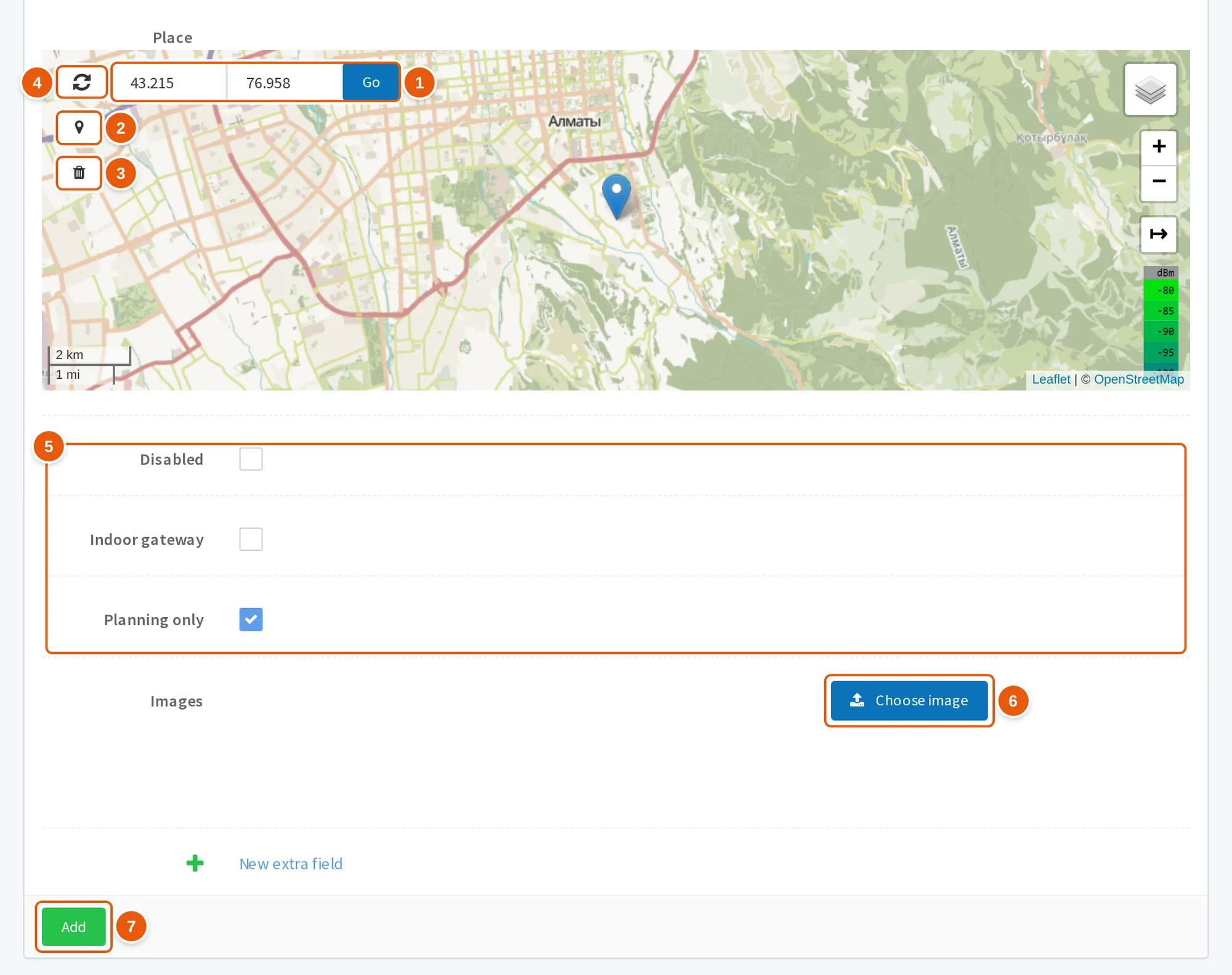
- "Latitude", "Longitude" and "Go" — a point by coordinates.
- The marker button — the mode in which clicking on the map sets the point.
- The trash can button — delete mode: clicking the marker removes the point.
- "Refresh" — reloads the gateway's coverage image on the map.
- "Disabled", "Indoor gateway", "Planning only" — checkboxes, see the table below.
- "Images" — the "Choose image" button adds photos of the gateway: .jpg, .jpeg, .png.
- "Add" — saves the new gateway; a saved gateway has the "Save" and "Save and continue editing" buttons instead.
Antenna. A gateway without an antenna is not included in the coverage calculation. The antenna azimuth and tilt also go into the calculation.
Altitude. The server default is 20, but the add form fills in 0. If you do not enter an altitude, the gateway is saved with altitude 0 and is not included in the network coverage calculation: gateways with an altitude below 0.1 are left out of it.
| Checkbox | What it changes |
|---|---|
| "Disabled" | The gateway is left out of the network coverage calculation and is not recalculated on save; the own coverage of a disabled gateway is built only by the Update coverage action. The gateway is not shown on the Coverage map and is not checked by SNMP monitoring. In the list it has a red icon in the "Off/On" column. The checkbox does not stop receiving and sending packets: the server looks a gateway up only by EUI and the active flag, so uplink and downlink go through a disabled gateway as usual, and "Last seen" keeps updating |
| "Indoor gateway" | The gateway is left out of the network coverage calculation. The calculation for the gateway itself is skipped with the "Coverage is ready" status |
| "Planning only" | The gateway is not excluded from the coverage calculation for having been offline for a long time. Without this checkbox, a new gateway that has never connected gets no coverage calculation when saved |
Every save of a gateway — create, change, import, delete — queues a background recalculation of its coverage. The task picks up the gateway only if it is active, not disabled, and has been online within the last 24 hours or is marked "Planning only".
The network coverage calculation leaves out gateways that are deleted, disabled, indoor, without a place, without an antenna, with an altitude below 0.1, as well as gateways that have been offline for more than 24 hours and are not marked "Planning only". The calculation for an individual gateway is skipped with the "Coverage is ready" status if the gateway is indoor, has no antenna or has no place — so the green coverage icon does not guarantee that a coverage image has been built.
Gateway list: columns and marks
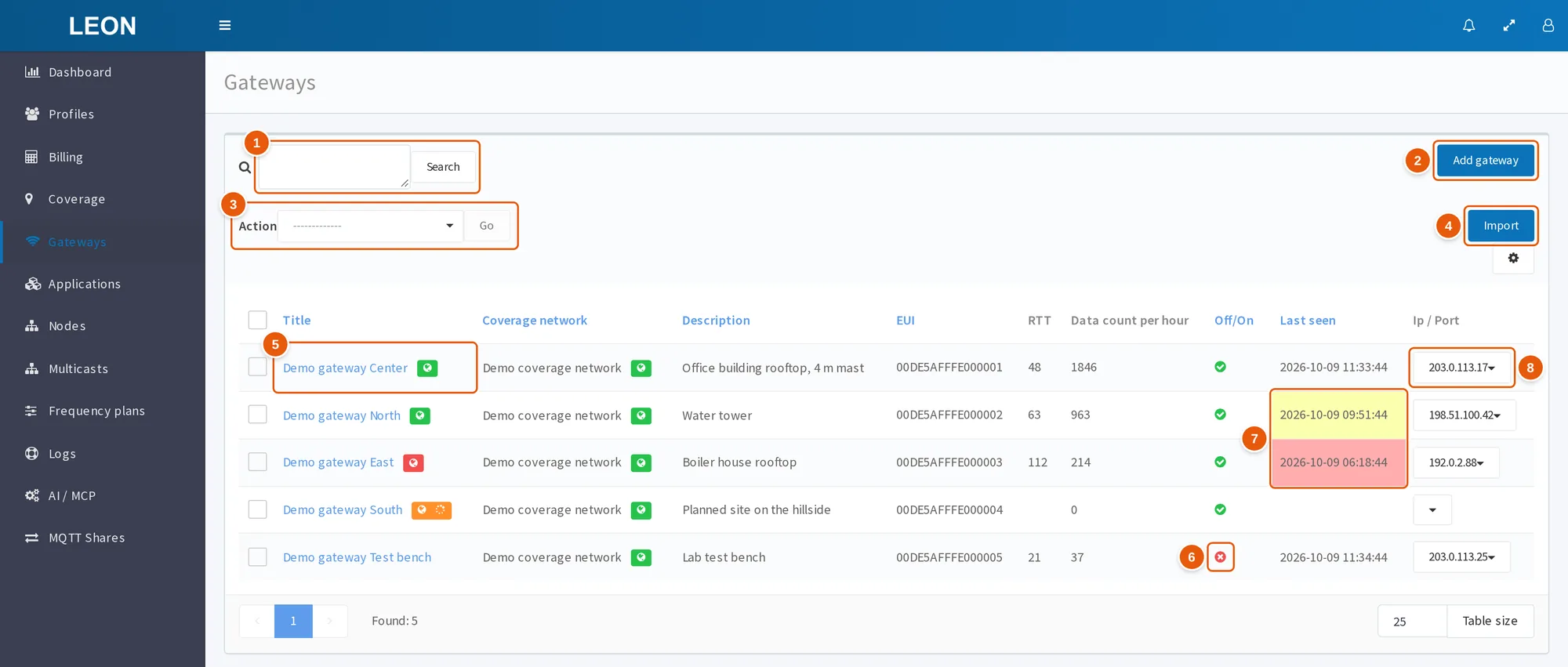
- Search field and the "Search" button — search by one or several lines.
- "Add gateway" — the "Add gateway" form on the
/gateways/addpage. - "Action" and "Go" — a bulk action on the checked gateways: "Delete", "Export", "Update coverage", "Permissions".
- "Import" — the "Import of gateways" panel for a CSV or XLSX file.
- "Title" — a link to the gateway card; the globe icon next to it is the coverage calculation status: green — "Coverage is ready", red — "No coverage generated", yellow with a spinning indicator — "Coverage generating".
- "Off/On" — a red circle with a cross: the gateway has the "Disabled" checkbox set.
- "Last seen" — a pale yellow cell: no keepalive for 1 hour or more, pale red — for 3 hours or more.
- "Ip / Port" — the IP address of the last keepalive; its drop-down menu has the "Connection by SSH" item.
| Column | What it shows |
|---|---|
| Checkbox | Selects the row for bulk actions |
| "Title" | The gateway title; a link to the card. A globe icon next to it may show the status of the gateway's coverage calculation |
| "Coverage network" | The gateway's coverage network. A globe icon next to it may show the status of the network's coverage calculation |
| "Description" | The gateway description |
| "EUI" | The gateway EUI |
| "RTT" | The smoothed gateway response time to a downlink, in milliseconds; the column does not show units |
| "Data count per hour" | How many data log records are linked to the gateway for the last hour, excluding downlink |
| "Off/On" | A green circle with a check mark — the "Disabled" checkbox is cleared; a red circle with a cross — the checkbox is set |
| "Last seen" | When the gateway last sent a keepalive (PULL_DATA), in the yyyy-MM-dd HH:mm:ss format |
| "Ip / Port" | The IP address the last keepalive came from. After a keepalive the port is not shown: the server records it as 0 |
If additional gateway fields are set to be shown in the table, each such field gets its own column in the list.
"Last seen", IP and RTT are updated by the server only on PULL_DATA — the gateway keepalive. Uplink (PUSH_DATA) does not update these fields. The initial IP, port and "Last seen" values can be set by import from a file. The server updates the active gateway with the EUI from the packet and records the time in UTC. The "Last seen" cell is highlighted:
| Color | When |
|---|---|
| Pale yellow | 1 hour or more has passed since the last event |
| Pale red | 3 hours or more have passed since the last event |
RTT is the time in milliseconds from sending a downlink frame to the gateway until its TX_ACK acknowledgment. The value is smoothed: the first measurement is taken as is, and each next one enters the value with a weight of 0.3 (EWMA). The smoothed value is kept in the memory of the ONS process and reaches the database with the next PULL_DATA. Until at least one downlink with a TX_ACK acknowledgment has gone through the gateway, an empty value is written to the database, and the RTT column is empty. The in-memory value is lost after an ONS restart and after the gateway sent no packets for more than 5 minutes (the server forgets its in-memory data); then RTT is empty again until the next downlink with TX_ACK.
The server uses RTT when responding to a device: after an uplink it waits 0.6 seconds minus half of the gateway's RTT and only then prepares the downlink. The deduction is at most 0.3 seconds — it reaches the limit at an RTT of 600 ms or more.
"Data count per hour" counts the data log records for the last hour linked to this gateway, excluding downlink. An uplink is linked to the gateway that received it best; the other gateways that received it go only into the record's gateway_available list, see get_data_req. So a gateway that hears devices but was never the best one during the last hour shows 0.
The globe icon shows the status of the coverage calculation; the status in words appears in a tooltip on hover.
| Code | Icon | Status |
|---|---|---|
| 0 | Yellow, with a spinning indicator | "Coverage generating" |
| 1 | Red | "No coverage generated" |
| 2 | Green | "Coverage is ready" |
"Ip / Port". The server knows the gateway's port, but writes 0 to the database on every keepalive. So the column shows only the IP (the port is shown only if it is not 0 — for example, for an imported gateway before its first keepalive), and the "Port" field in the card shows 0 after the first keepalive.
The address in this column has a drop-down item "Connection by SSH": the window asks for a user name and password and opens a web terminal in a new window. The item works only if a separate SSH service is deployed on the installation.
Search, sorting and table settings
The search field accepts several lines; the "Search" button starts the search:
- One line. Separate words with spaces. A gateway is found if all words occur — as part of the value, case-insensitive — in the title, description or EUI (each in any of them), or if all words occur in one additional field shown in the table.
- Several lines. A gateway is found if any line exactly matches its title, description, EUI or the value of an additional field shown in the table. This lets you paste, for example, an EUI column from a spreadsheet.
While a search is set, the field shows "Found: N (Total: M)" below it; clicking "Total" resets the search.
Clicking the "Title", "Coverage network", "Description", "EUI", "Off/On" or "Last seen" column header sorts the list: the first click — ascending, the second — descending, the third removes the sorting. In descending order, empty values come last.
A page holds 25 rows by default; to change this, enter a number in the field at the bottom of the table and click the "Table size" button. The gear menu "Table settings" has the "Truncate text" checkbox, on by default. The browser remembers the page number, search, sorting, page size and the "Truncate text" checkbox in localStorage under the gateway_list key.
Bulk actions: delete, export, coverage, permissions
Select gateways, choose an action in the "Action" menu and click "Go". Who can use each action is described in the first section.
Select gateways with the checkbox in a row or with the checkbox in the table header — all rows of the page. When the whole page is selected and more gateways are found than fit on it, a "Select all (N)" link appears.
"Select all" covers all found gateways only when a search is set. With an empty search, the action affects only the rows of the current page.
| Action | What it does |
|---|---|
| "Delete" | Deletes the selected gateways |
| "Export" | Downloads a CSV file with the selected gateways |
| "Update coverage" | Queues a background recalculation of the coverage of the selected gateways and their networks |
| "Permissions" | Grants or revokes a user's rights on the selected gateways |
Creating, changing, deleting, exporting, granting rights and updating coverage are recorded in the action log, see Logs.
Deleting
The interface asks: "Do you really want to delete gateways?". Deletion is soft: the gateway stays in the database as inactive, with a deactivation date, and the object rights on it are removed. The EUI must be unique only among active gateways, so the EUI of a deleted gateway can be registered again.
If the selection contains gateways the user has no right to delete, the permitted ones are deleted anyway, but the server responds with an error, and the interface shows "Something went wrong".
Export
The browser downloads the file exported_gateways_YYYY-MM-DD-HH-mm.csv (the name contains the export date and time). The delimiter is a comma, all values are quoted.
| Column | What it contains |
|---|---|
| Title | The gateway title |
| EUI | The gateway EUI |
| Description | The description |
| Ip | The IP address of the last keepalive |
| Port | 0 after the first keepalive |
| Last seen | The time of the last keepalive |
| Place | A point in WKT format, for example POINT(<longitude> <latitude>) |
| Altitude | The gateway altitude |
The server writes the column headers in Russian or English, according to the request language; for any other language, in English.
Update coverage
After the "Update coverage?" confirmation, the server queues a background recalculation of the coverage of the selected gateways and their networks, and the interface reports "Coverage generating". Unlike the recalculation on saving a gateway, this action does not check whether the gateway is disabled or when it was last online. The conditions of the calculation itself still apply — see Coverage.
Permissions
The action opens the "Assignment of permissions" window. In the "User" field choose a profile from the list, then a right:
| Right | What it does |
|---|---|
| "View" | Grants view_gateway and removes change_gateway |
| "Change" | Grants view_gateway and change_gateway |
| "Revoke" | Removes both rights |
A user other than the superuser can grant rights only to their own child profiles and only on their own gateways. For other gateways the server responds with Permission denied.
Importing gateways from CSV and XLSX
- Click "Import" — the "Import of gateways" panel opens. Only users with the
staffflag see the button. - Choose an
.xlsxor.csvfile. The sample is thetemplate_gateways.xlsxfile. - Drag the file columns onto the database fields. "Title" and "EUI" are required; the others are "Description", "Ip", "Port", "Last seen", "Place" and "Altitude".
- Choose a coverage network in the "Choose coverage" field. Until a network is chosen, the upload button is inactive.
- Click "Upload data".
Import rules:
- The server checks the right on the chosen coverage network: gateways can be imported by its owner, a user with the
change_coveragenetworkright or the superuser. - A row with an EUI that is already taken gets the error
Gateway <EUI> already exists.; the other rows are saved. - The "Ip", "Port" and "Last seen" values from the file are saved in the gateway record and stay until the gateway's first keepalive: it overwrites the IP and the time and replaces the port with 0.
Gateway card
At the top of a saved gateway's card there is an arrow button (tooltip "Back to gateways"), a header with the EUI and a "title, description" line. Below, above the form, are the "Network State" and "Current data" blocks.
While the card is open, the side menu has a subitem with the gateway EUI under "Gateways", with links to the "Network State" and "Data" blocks. When a new gateway is being added, there is no subitem.
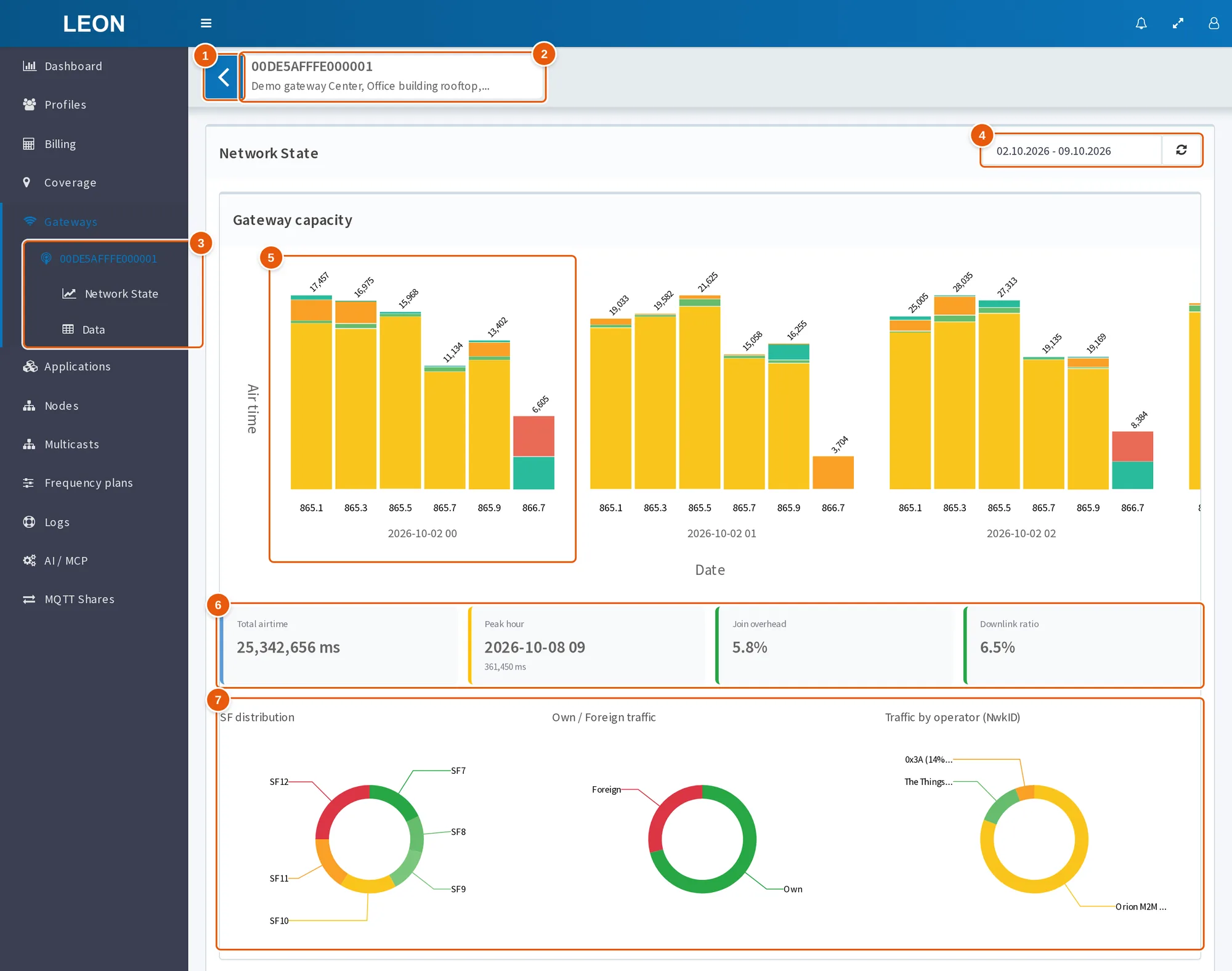
- The arrow button — tooltip "Back to gateways", returns to the list.
- Header — the gateway EUI and the "title, description" line.
- Menu subitem with the gateway EUI — links to the "Network State" and "Data" blocks.
- Period of the "Network State" block — 7 days by default, time in UTC; the button next to it reloads the charts.
- "Gateway capacity" — airtime per hour: bars are frequencies, segments are message types.
- Summary — "Total airtime", "Peak hour", "Join overhead", "Downlink ratio".
- Donut charts — "SF distribution", "Own / Foreign traffic", "Traffic by operator (NwkID)".
Network state
The default period is 7 days. Once the period start is chosen, the end can be no more than 30 days after it. Time is in UTC.
The block's charts: "Gateway capacity", "Signal strength indicator (RSSI)", "Signal-to-noise ratio" (LSNR), a combined RSSI and LSNR bubble chart, RSSI, LSNR and SF ("Spreading factor") bubble charts, "Frequency of reception", "Network Quality", "Unique nodes count", "Traffic history".
Gateway capacity
The "Gateway capacity" chart shows the gateway's airtime by hour for the selected period: bars are split by frequency, segments by message type: JR (Join Request), JA (Join Accept), UDU (Unconfirmed Data Up), UDD (Unconfirmed Data Down) and others. A summary is shown under the chart.
| Card | What it shows |
|---|---|
| "Total airtime" | The gateway's total airtime for the period, ms |
| "Peak hour" | The hour with the most airtime and its airtime, ms |
| "Join overhead" | The share of airtime taken by Join Request and Join Accept. Above 20% — red |
| "Downlink ratio" | The share of airtime taken by downlink. Above 30% — red |
Under the cards are the "SF distribution", "Own / Foreign traffic" and "Traffic by operator (NwkID)" donut charts.
- "Own" traffic is downlink of this ONS and uplink data frames whose DevAddr belongs to a device of this ONS. Everything else counts as "Foreign", including Join Request: it has no DevAddr. More on how traffic is split — on the Dashboard page.
- If the confirmed uplink share of airtime — Confirmed Data Up out of the sum of Confirmed and Unconfirmed Data Up — is above 10%, the card shows "Confirmed uplink warning: N% of uplink traffic is confirmed — may cause congestion".
Current data
The "Current data" block contains the "Data" table — the log records linked to this gateway: uplinks for which it is the best gateway, and downlinks sent through it. If no period is chosen, the last month is shown.
- Filters: "All message types", "All directions", "Show for the period". Time is in UTC.
- The "Refresh in" button with a seconds field (10 by default) turns automatic table refresh on and off.
Good to know
- The "Disabled" checkbox does not stop receiving and sending packets through the gateway — it affects only the coverage calculation, the Coverage map and SNMP monitoring.
- Of the gateway packets, only the keepalive (PULL_DATA) updates "Last seen", IP and RTT, not uplink.
- RTT is empty until a downlink with a TX_ACK acknowledgment has gone through the gateway, and it is empty again after an ONS restart or after the gateway sent no packets for more than 5 minutes (the server forgets its in-memory data).
- After the first keepalive the gateway port is 0 — in the list, in the card and in the export: the server records it as 0.
- "Data count per hour" counts only the uplinks for which the gateway was the best one.
- The add form fills in altitude 0; a gateway with an altitude below 0.1 is left out of the network coverage calculation.
- The green "Coverage is ready" icon is also set when the calculation for the gateway was skipped.
- With an empty search, "Select all" affects only the rows of the current page.
- A deleted gateway stays in the database as inactive; its EUI can be registered again.
- "Connection by SSH" works only if a separate SSH service is deployed on the installation.
If a gateway does not connect
| What you see | Cause | What to do |
|---|---|---|
| "Last seen" and IP are empty | The gateway's keepalive does not reach the server: the packet forwarder has a wrong server address or port, or UDP packets to the server's port 1700 do not get through | Check the ONS server address and port 1700 in the packet forwarder settings. The server listens on one port, 1700/udp, for all gateway packets. Check that the gateway can send UDP to this port |
| "Last seen" is empty although the address and port are correct | The gateway EUI in ONS does not match the Gateway ID in the packet forwarder | Compare the EUI in the card with the Gateway ID: 16 hexadecimal characters, uppercase in ONS |
| The "Last seen" cell is yellow or red | The server has not received the gateway's keepalive for 1 hour or 3 hours and more | Check the gateway's power, its network connection and the packet forwarder, then the server address and port |
| Uplinks go through the gateway, but "Last seen" does not update | This field is updated only by the keepalive (PULL_DATA); uplink does not change it | Check that PULL_DATA is sent to the server's port 1700 |
| Devices are online, but "Data count per hour" is 0 | During the last hour the gateway was never the best one | Nothing: this is not a fault |
| The RTT column is empty | No downlink with TX_ACK has gone through the gateway yet, ONS was restarted, or the gateway sent no packets for more than 5 minutes (the server forgets its in-memory data) | Nothing: the value appears after the first downlink |
See also
- Coverage — how coverage is calculated, which gateways are included and what the calculation statuses mean.
- Dashboard — problem gateways, own and foreign traffic, traffic by operator.
- Profiles — profile types, their groups and access to gateways.
- Logs — the action log for gateways.
- Sending data to a device — the TX_ACK acknowledgment and downlink frame statuses.