Multicast Groups
A multicast group is a shared address and shared keys that let several devices receive the same downlink frame. In the "Multicasts" section of the ONS web interface, groups are created, edited and deleted. The web interface cannot add devices to a group or send data to a group — see Good to know.
What a group is in the web interface
The "Multicasts" menu item sits between "Nodes" and "Frequency plans" and opens the group list at /multicast. The item has the same name in the Russian interface. A new group is created at /multicast/add; an existing group opens by its Multicast EUI: /multicast/<Multicast EUI>.
On the server a group is stored as a device record marked as a multicast group. The Multicast EUI is stored as the DevEUI, the multicast address as the DevAddr, the group type as the device class, the DR as the fixed data rate, and the frequency in a separate field.
That is why the group EUI and address must be unique among all active records — groups and devices alike. On a conflict the server does not save the group and returns the error "This combination of uniq fields already exists.". The EUI and address of a deleted group are free again.
The web interface only stores the group parameters. It does not add devices to the group, does not send data to the group, and does not write the group address and keys into devices.
Who can open the section and edit groups
| What | Available to |
|---|---|
| The "Multicasts" menu item and the section itself | The groups admin, monitoring and the superuser (superuser) |
| The "Add multicast" button and the "Delete" action in the list | The groups admin, node_admin and the superuser |
| The "Permissions" action in the list | The group dealer and the superuser |
Filling in and saving a new group at /multicast/add | The groups admin, node_admin and the superuser |
| Editing an existing group | Decided by the user's permissions on that group returned by the server: they take precedence over the user's groups |
The group node_admin is listed in the permissions of the section's screens, but it is missing from the list of groups that see the "Multicasts" menu item. Access to the section's addresses is checked against the same list, so a user who belongs only to node_admin cannot open the section.
Group list
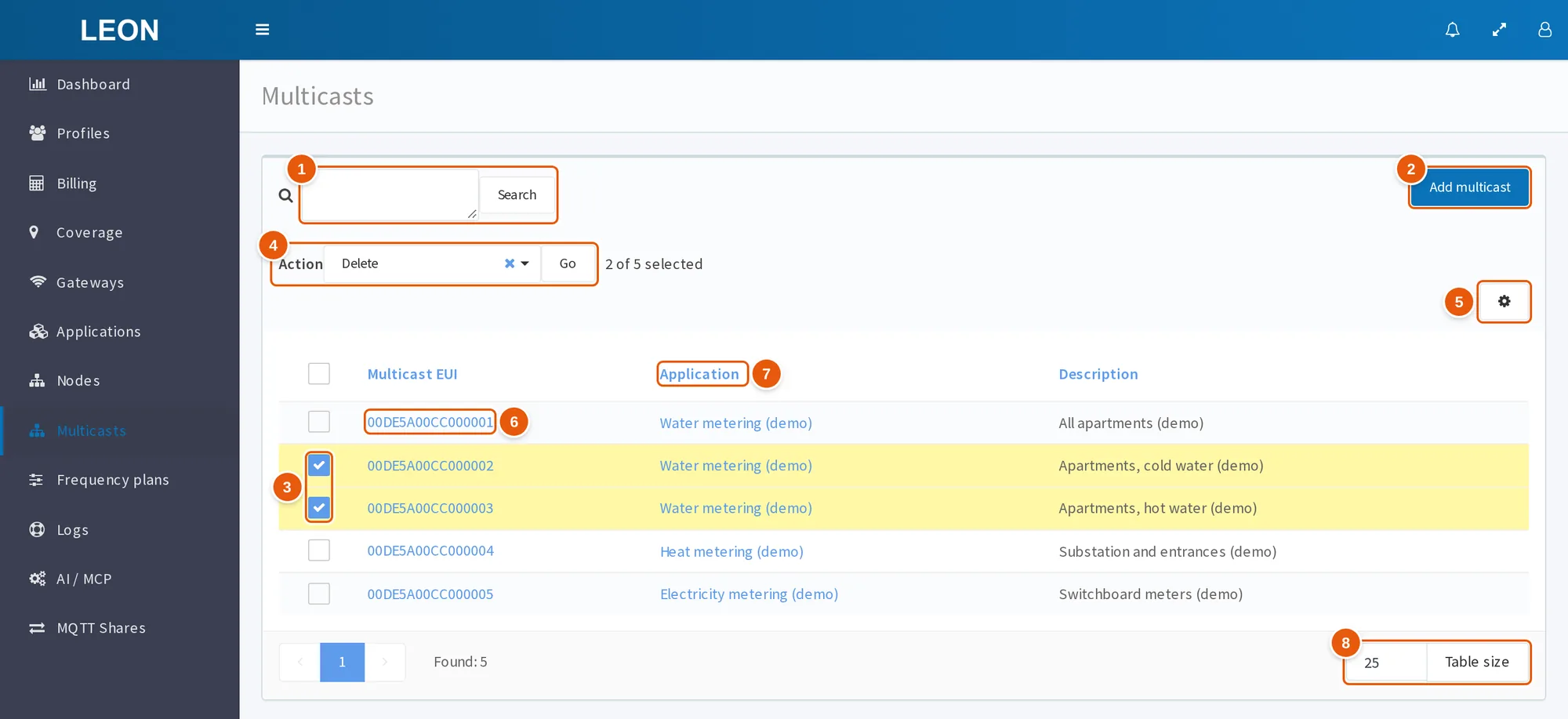
- Search — the field and the "Search" button. The server searches in the Multicast EUI, the multicast address, the application name, the description and the values of extra fields.
- Add multicast — opens the new group page
/multicast/add. - Row checkboxes — the selected groups the action applies to.
- Action and Go — choose the "Delete" or "Permissions" action and run it. Next to them you see how many rows are selected.
- Table settings (gear) — the "Truncate text" switch.
- Multicast EUI — a link to the group page.
- Application — you can sort by this column and by the "Description" column. The rows link to the application pages if the user may view them.
- Table size — rows per page, 25 by default.
| Column | What it shows |
|---|---|
| "Multicast EUI" | The group EUI; a link to the group page |
| "Application" | The group's application. A link to the application page if the user may view it, otherwise plain text |
| "Description" | The group description |
After a search, the field shows how many groups were found ("Found") and how many there are in total ("Total"). The server searches, case-insensitively, in the Multicast EUI, the multicast address, the application name, the description and the values of extra fields.
You can sort by the "Application" and "Description" columns. Sorting by the "Multicast EUI" column does not work in the current version: the interface sends the server the sort field multicast_eui, which is not among the allowed ones, the server responds with an error, and its text appears instead of the table rows. The rows come back after sorting by another column.
A page shows 25 rows by default. To change this, enter another number in the field at the bottom of the list and click "Table size". The gear menu "Table settings" has a "Truncate text" switch. The browser remembers the search, sorting, page number, table size and truncate mode in localStorage under the key multicast_node_list.
Acting on several groups:
- Select the rows.
- In the "Action" field, choose "Delete" or "Permissions".
- Click "Go". The button stays disabled until an action and at least one row are selected.
Deleting groups and the Permissions action
A group can be deleted only from the list: the group page has no delete button.
- Select the groups, choose the "Delete" action and click "Go".
- Confirm the question "Are you sure you want to delete nodes?".
- The result appears as the message "Nodes deleted" with the list of deleted group EUIs.
If the selection includes a group the user may not delete, the server deletes the others, and the interface shows only "Something went wrong". The list on screen is not refreshed — reload the page and check which groups were deleted. The "Select all (N)" link next to the "Go" button does not work for deletion: the server rejects the whole request, deletes nothing, and the interface shows the same message.
The group is not erased from the database. The server marks it inactive, records the deactivation date, removes the user and group permissions granted on it, and adds a "Deletion" entry to the user action log. The group disappears from the list, and its EUI and address can be used again. The server allows deletion to the superuser, the owner of the group's application and a user with the delete permission on that group (delete_node).
The "Permissions" action changes nothing in the current version: the permissions dialog opens, but after confirmation the interface sends no request to the server.
Creating a group
- In the list, click "Add multicast" — the
/multicast/addpage opens. - Choose the "Application" and enter the "Multicast EUI".
- Check "Multicast Adress", "Nwks key" and "Apps key": they are already filled with random values. If the group address and keys are already written into the devices, enter them.
- Fill in the "Frequency" field: without it the form is not complete and the "Add" button stays disabled.
- Click "Add". The group is created, the message "Multicast added" appears, and the list opens.
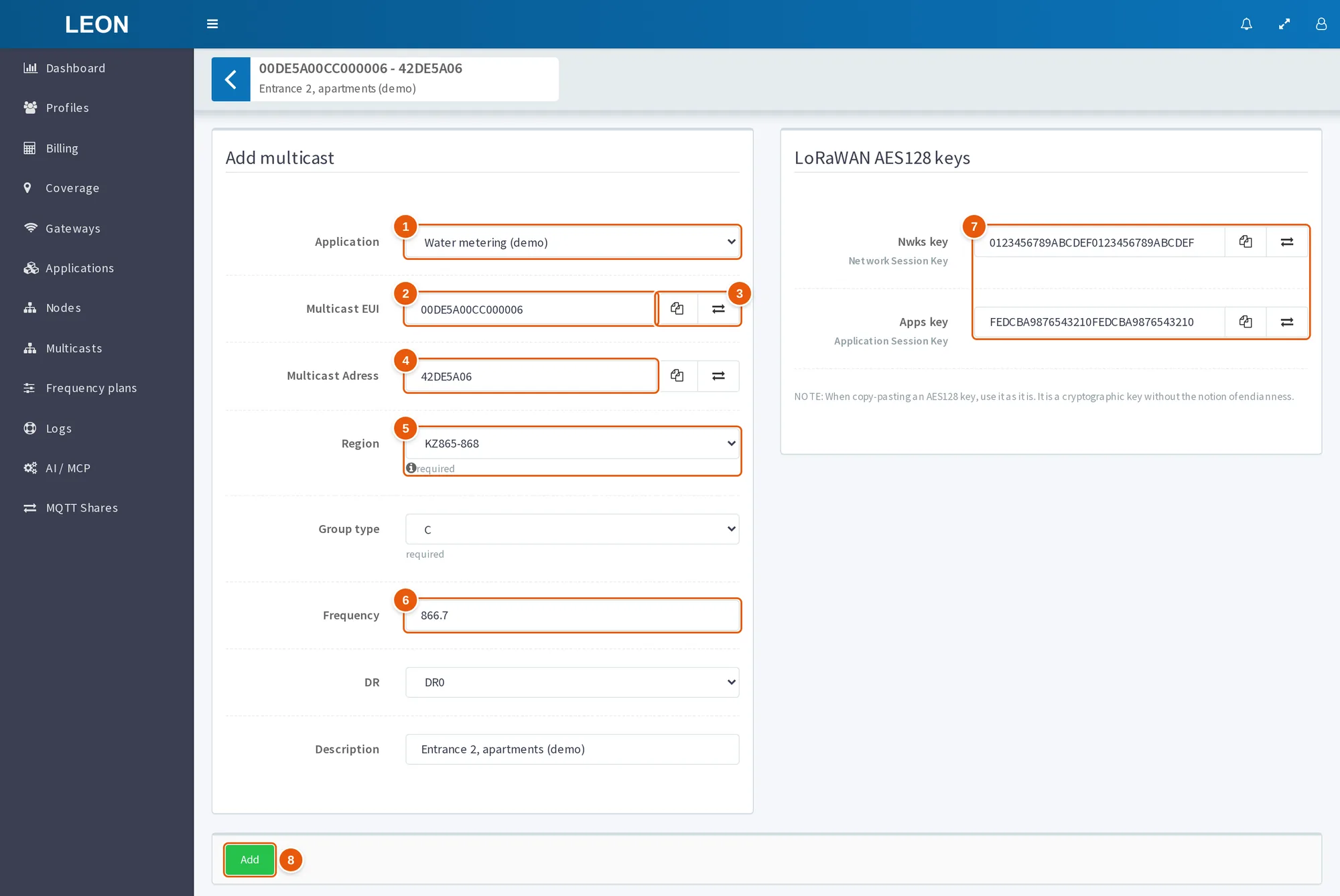
- Application — the group's application.
- Multicast EUI — the group EUI, 16 hex characters. Required.
- Copy buttons — "Copy big endian" and "Copy little endian", see Address and keys: format and copying.
- Multicast Adress — already filled with a random address from the server.
- Region — the group's frequency plan, KZ865-868 by default. The info icon opens the "Frequency plan" popup.
- Frequency — required: without it the "Add" button stays disabled.
- Nwks key and Apps key — the group keys. They are filled with random values when the page opens; if the keys are already written into the devices, enter them — in the screenshot the keys are entered manually.
- Add — creates the group and opens the list.
Fields of the left panel and of the right panel "LoRaWAN AES128 keys":
| Field | What it sets | Default |
|---|---|---|
| "Application" | The group's application. The list holds at most the first 50 active applications visible to the user, sorted by name; others cannot be chosen | — |
| "Multicast EUI" | The group EUI, 16 hex characters. Required | — |
| "Multicast Adress" (spelled so in the interface) | The group address (DevAddr), 8 hex characters | A random address from the server |
| "Region" | The group's frequency plan. The list holds all 38 plans, codes 0–37, see Region codes. The info icon next to it opens a "Frequency plan" popup with a brief description of the selected plan | KZ865-868 (code 6) |
| "Group type" | The LoRaWAN class of the group: B or C | C |
| "Frequency" | The group frequency, a number. Required. The form shows no unit | — |
| "DR" | The group data rate: empty or DR0–DR15. The server rejects the empty value — saving fails | DR0 |
| "Description" | The group description, up to 255 characters | — |
| "Nwks key" | The group NwkSKey, 32 hex characters. The caption under the name is "Network Session Key" | A random key |
| "Apps key" | The group AppSKey, 32 hex characters. The caption under the name is "Application Session Key" | A random key |
Under the keys there is a note: when copy-pasting an AES128 key, use it as it is.
On creation the server checks that the chosen application is active and that the user is allowed to work in it, and adds an "Addition" entry to the user action log.
ONS does not support class B — see Device classes. So choose C in the "Group type" field.
Address and keys: format and copying
The "Multicast EUI", "Multicast Adress", "Nwks key" and "Apps key" fields accept hex in uppercase only. Form errors:
- lowercase letters —
Enter a valid hexfigure with uppercase: e.g. "FF0022"(spelled so in the interface); - a value shorter than required — "Minimum length is 16 characters (now 12)" (the numbers depend on the field).
Defaults on the new group page:
- keys — random 32 uppercase hex characters generated by the browser;
- address — a random DevAddr from the server. The server builds it from the network NetID set in the server settings (default
000021) and checks that no existing record has that address yet; it makes up to 10 attempts.
The EUI, the address and each key have two copy buttons: "Copy big endian" copies the value as is, "Copy little endian" copies it with the byte order reversed (01020304 → 04030201). The tooltips of these buttons are in English in both interface languages.
Editing a group
A group page opens when you click its Multicast EUI in the list. The header shows the group's "EUI - address" and its description cut to 56 characters. The arrow button with the tooltip "Back to multicast" returns to the list. In the sidebar, under "Multicasts", an item with the group's Multicast EUI appears with a nested "Data" item that jumps to the "Data" table. The new group page has neither item.
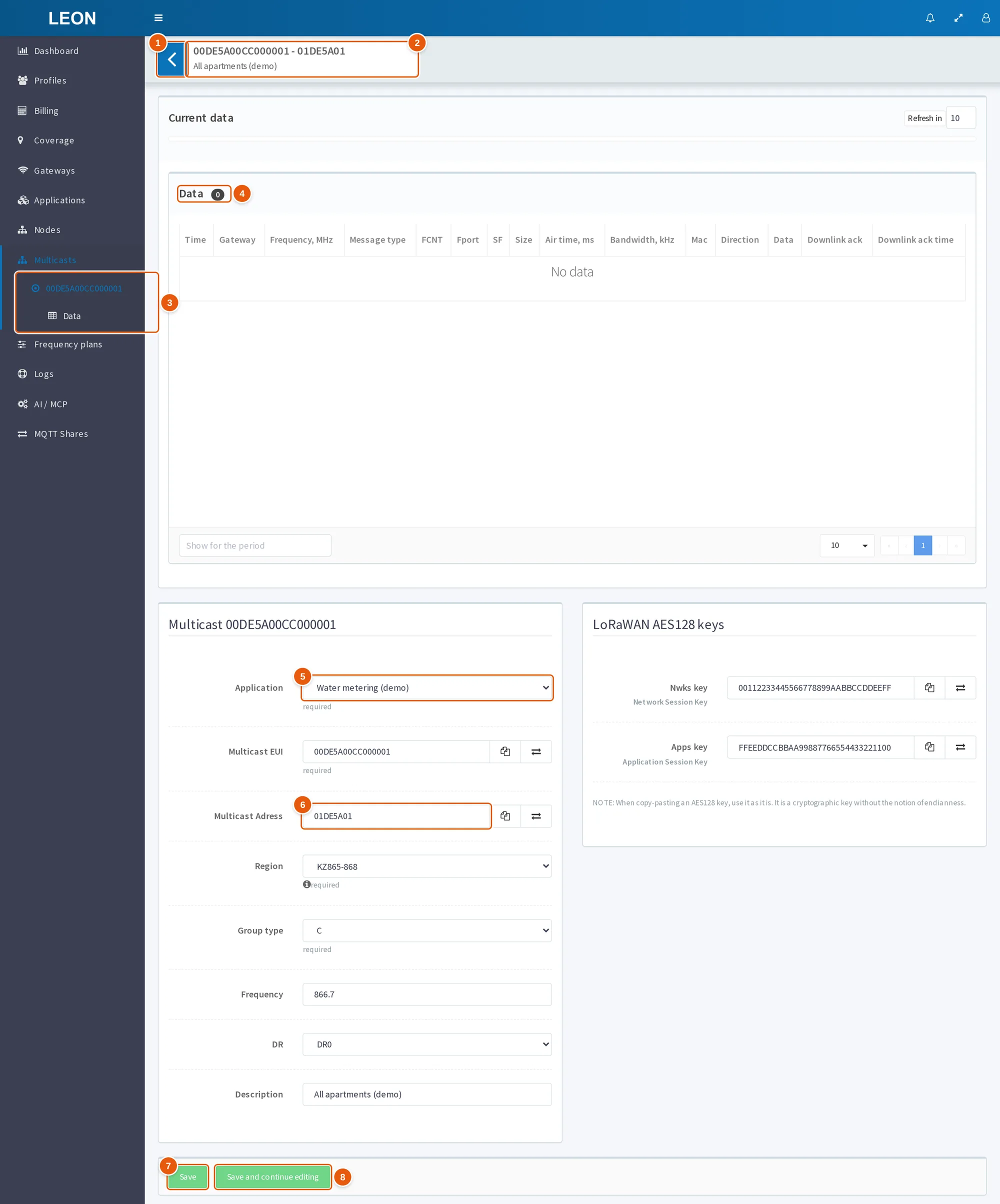
- Back to multicast — the arrow button, returns to the list.
- Header — the group's "EUI - address" and its description cut to 56 characters.
- Sidebar items — the group's Multicast EUI and the nested "Data" item that jumps to the "Data" table.
- Data — the group's data table: no direction and MType filters, no RSSI and LSNR columns.
- Application — the application of an existing group cannot be changed: the server keeps the group in its original application.
- Multicast Adress — after "Save and continue editing" it is filled with a new random address from the server.
- Save — saves the changes and returns to the list.
- Save and continue editing — saves the changes and stays on the page. Both buttons are enabled only when the form has changes and all fields are valid; in the screenshot the form has not been changed yet.
| Button | What it does |
|---|---|
| "Save" | Saves the changes and returns to the list |
| "Save and continue editing" | Saves the changes and stays on the page. After saving, the "Multicast Adress" field is filled with a new random address from the server; if you then change another field and save, the group gets this new address |
After saving, the message "Multicast updated" appears, and a "Change" entry is added to the user action log. The buttons are enabled only when the form has changes and all fields are valid.
Whether a group can be edited depends on the user's permissions on it:
- without the change permission the fields are read-only and the button panel is hidden;
- the "Application" field is also locked when the user lacks the
addpermission on the group's application.
The application of an existing group cannot be changed. Even if the "Application" field is enabled and another application is selected, the server keeps the group in its original application when saving.
The Data table on the group page
On an existing group's page, a "Data" table is shown above the form. It has no direction and message type (MType) filters, and the RSSI and LSNR columns are hidden. The new group page has no such table.
Good to know
- Group membership is not set here. A device cannot be added to a group from the web interface. Group membership is a separate record on the server, managed by the WebSocket API command
add_device_to_multicast_req. - Data cannot be sent to a group. The web interface has no such function, and the WebSocket API command
multicast_data_reqin the current version checks the request but sends no frame. How to send a command to several devices now — see What to do now. - After "Save and continue editing" the address in the form changes. Before the next save, restore the previous address or open the group again from the list.
- The server does not configure devices. The group address and both keys must be written into each device separately — see How a device learns about the group.
- Frequency and DR are only stored. The server records them but does not use them for transmission. The frequency unit is given neither in the form nor in the server data model; the
create_multicast_reqpage describes thefreqfield in MHz. - Class B is not supported. The interface offers classes B and C, the server also accepts A, but ONS does not support class B.
- The group's application does not change. The server ignores a different application chosen on the group page when saving.
See also
- Multicast — what multicast is in ONS, what works in the current version and how to send a command to several devices now.
- Multicast groups — a group on the server, command order and what works in the current version.
- Add device to multicast group — adding a device to the group membership.
- Device classes — classes A, B and C in ONS.
- Frequency plans — frequencies and data rates of the plans.