Nodes
The Nodes section of the Orion Network Server web interface is the list of LoRaWAN devices with a card for each of them; the interface calls a device a node. Here devices are registered by hand or imported from a file, their settings are changed one by one or in bulk, and received frames, signal levels and losses are monitored. A node card cannot send data to a device: downlinks are sent through the WebSocket API.
Where the section is and who can access it
The Nodes menu item opens the node list at /nodes. A new node is added on the /nodes/add page. A node card opens at /nodes/<DevEUI>; the DevEUI in the list links to it.
| What | Who can access it |
|---|---|
| The Nodes menu item and the section itself | Groups admin, monitoring and the superuser (superuser) |
| Adding a node; the Delete, Export and Change actions | Groups admin, node_admin and the superuser |
| The Permissions action | Group dealer and the superuser |
| Changing an existing node | According to the rights on that node returned by the server. Without the change right the card opens read-only |
The node_admin and dealer groups give these actions only together with access to the section — the admin or monitoring group.
The server also checks the rights on each node: a node can be deleted or changed by the owner of its application or by a user with the delete or change right on that node.
Node list: columns and color marks
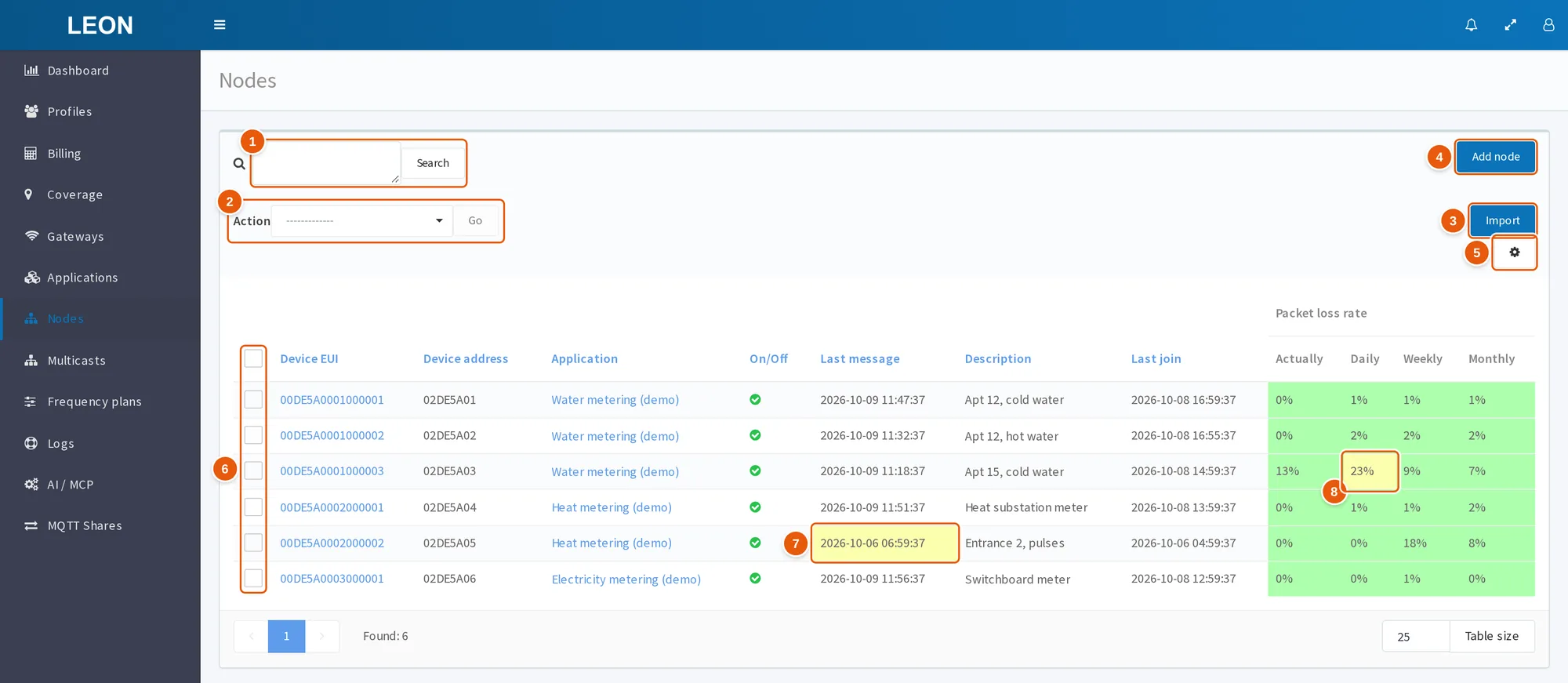
- Search field and the "Search" button — search by one or several lines.
- "Action" and "Go" — a bulk action on the checked nodes.
- "Import" — the "Import of nodes" panel for a CSV or XLSX file.
- "Add node" — a new node on the
/nodes/addpage. - The "Table settings" gear — the "Truncate text" mode.
- Checkboxes — in the header they check all rows of the page, in a row — one node.
- "Last message" — a yellow cell: no messages from the node for more than 2 days.
- "Packet loss rate" — a yellow cell: losses of 20% or more.
| Column | What it shows |
|---|---|
| "Device EUI" | The node's DevEUI; a link to the card |
| "Device address" | DevAddr |
| "Application" | The application the node belongs to. It is a link if the user may view the application |
| "On/Off" | Whether the node is on |
| "Last message" | When the last message from the node arrived |
| "Description" | The node description |
| "Last join" | When the node last joined the network |
| "Packet loss rate" | Losses for four periods: "Actually", "Daily", "Weekly", "Monthly" |
If additional node fields are set to be shown in the table, each such field gets its own column in the list.
The cell color shows which nodes need attention:
| Cell | Yellow | Red |
|---|---|---|
| "Last message" | More than 2 days ago | More than 5 days ago |
| "Packet loss rate" | 20% or more | More than 50% |
| "Last join" | — | The last join ended with a status other than MIC OK |
Hovering over a "Last join" cell shows the status of the last join: MIC OK, MIC ERROR or LATE JOIN ACCEPT. A "!" after the time means the server has banned the node for joining too often; the mark clears at the first join after the ban ends; see the "Test device" field below.
Search, sorting and selecting nodes
The search field accepts several lines:
- One line. Separate words with spaces. A node is found if every word occurs — as part of the value, case-insensitive — in the DevEUI, DevAddr, application name, description or an additional field shown in the table.
- Several lines. One value per line — for example, a pasted list of DevEUIs. The server compares the lines with the same fields as whole, case-sensitive values, not as parts of a value; paste DevEUIs in the same case as in the list.
When a search is set, "Found: N (Total: M)" appears next to the field; clicking "(Total: M)" resets the search.
Clicking a column header sorts the list by DevEUI, DevAddr, application name, On/Off, last message, description or last join. Further clicks switch the order: ascending, descending, unsorted.
A page holds 25 rows; to change it, enter a number in the field below the table and click "Table size". The browser remembers the page number, search, sorting, page size and the "Truncate text" mode (gear menu "Table settings") in localStorage under the node_list key.
To select nodes for bulk actions, use:
- the checkbox in a row — each node separately: a Shift-click checks a range of rows only on screen, and these rows do not get into the action;
- the checkbox in the table header — all rows of the page;
- the "Select all (N)" link — all found nodes.
"Select all" covers all found nodes only when a search is set. With an empty search, the action applies only to the nodes checked on the page.
Bulk actions: delete, export, change settings, permissions
Check the nodes, pick an action in the "Action" menu and click "Go". Who can use each action is listed in the first section.
| Action | What it does |
|---|---|
| "Delete" | Deletes the selected nodes |
| "Export" | Downloads a CSV file with the settings and keys of the selected nodes |
| "Change" | Changes the settings of the selected nodes in one operation |
| "Permissions" | Grants a user the view or change right on the selected nodes, or revokes rights |
Deleting
The interface asks: "Are you sure you want to delete nodes?". Deletion is soft: the node stays in the database as inactive, with a deactivation date, and the rights on it are removed. DevEUI and DevAddr must be unique only among active nodes, so a deleted device can be registered again with the same DevEUI.
Exporting
The browser downloads the file exported_nodes_YYYY-MM-DD-HH-mm.csv (the name holds the export date and time) with the columns: Device EUI, Device address, App key, Nwks key, Apps key, Activation, Description, Node class, Region, Rx window, ADR, ADR interval, Adr min, Adr max, Adr fix, Duty cycle, Seq up, Seq down, Down queue, Seq chk, Place, Last join, Last message, Tariff. The server writes the column names in the language of the request; they are given in English here.
The device keys — App key, Nwks key and Apps key — are written to the file in clear text.
Changing settings
"Change" opens the "Change node settings" dialog with the fields: "Application", "Tariff", "Description", "Node class", "Rx window", "Region", "Duty cycle", "ADR", "Adr interval", "Adr min", "Adr max", "Adr fix", "RX2 data rate (DR)", "RX1 DR offset", "RX1 delay", "RX2 frequency, Hz", "Extra channels", "Sequence check", "Roaming support", "On".
- An empty field means "Do not change": the nodes keep their current value.
- "Band default" resets a radio parameter to the frequency plan value.
- "Extra channels" can only be reset in bulk; the channel list itself is set in the node card.
- Before applying, the dialog lists the settings that will be applied and asks for confirmation.
The "Application" field moves the nodes to another application. The user can pick an application they own; the superuser can pick any.
Bulk change works only within one region. If nodes of different regions are checked, the dialog shows "Selection spans different bands" and offers "Keep only" for one of the regions: the label shows the region name and the number of its nodes. The server rejects a request with nodes of different regions as a whole (response 400). Before saving, the server validates every node and saves nothing if at least one of them fails.
Importing nodes from CSV and XLSX
- Click "Import" — the "Import of nodes" panel opens.
- Choose a
.csvfile in UTF-8 or an.xlsxfile (only the first sheet is read). A sample is thetemplate_nodes.xlsxfile linked in the panel; the link may be labeledTEMPLATEbecause the interface has no translation for it. - Choose a tariff ("Choose tariff") and the application ("Choose application") the nodes will go to.
- Drag the file columns onto "Fields in database". Columns named like the node fields in Russian or English are matched automatically.
- Click "Upload data". The interface shows errors per file row.
Import rules:
- Only "Device EUI" and "App key" are required.
- If DevAddr is empty, the server assigns a random free address; empty Nwks key and Apps key are replaced with random keys.
- Cells
null,noneand[null]count as empty;trueandfalsebecome boolean values. - If a node with this DevEUI already exists, the row gets the error
Node <EUI> already exists. - Nodes can be imported into an application by its owner, the superuser or a user with the change right on that application.
Adding a node: OTAA and ABP
A new node is filled in using the same card as an existing one; the fields are described in the next section. OTAA activation is selected by default:
- "Device address" is filled in automatically: the server issues an address not used by other nodes;
- Nwks key and Apps key are filled with random values;
- App key must be entered — the hint at the field says: "If you want to enable over-the-air join, add or derive the device's application key."
When an OTAA node is created, the server stores DevAddr and the session keys from the form but replaces them at every join: Join Accept issues a new DevAddr and keys. When an existing OTAA node is changed, the server does not save DevAddr, Nwks key and Apps key from the form.
For ABP, set the "Activation" switch to ABP. The interface clears "Device address" and both session keys — enter the values from the device firmware. The switch is labeled "OTTA" / "ABP": "OTTA" stands for OTAA.
Defaults for a new node:
| Parameter | Default |
|---|---|
| "Node class" | A |
| "Rx window" | RX1 |
| "Region" | KZ865-868 (code 6) |
| "ADR" | On |
| "Adr interval" | 20 |
| "Adr min" / "Adr max" | DR0 / DR5 |
| "Adr fix" | Not set |
| "Duty cycle" | 0 |
| "Seq up", "Seq down", "Down queue" | 0 |
| "Sequence check" | Strict |
| "On/Off" | On |
All these fields except "On/Off" are in the advanced mode, so in the simple mode a node is created with these values. If the device works in another frequency plan, switch to the "Advanced" mode and choose the region before saving.
"Add" saves the node, shows "Node added" and returns to the list.
Node card: basic fields and keys
At the top of the card are the "Back to nodes" button, the title "DevEUI - DevAddr" and the node description cut to 56 characters. Tabs: "Monitoring" (existing nodes only) and "Node settings". On the settings tab the "Simple" / "Advanced" switch ("Settings Mode") shows additional blocks; "Simple" is the default.
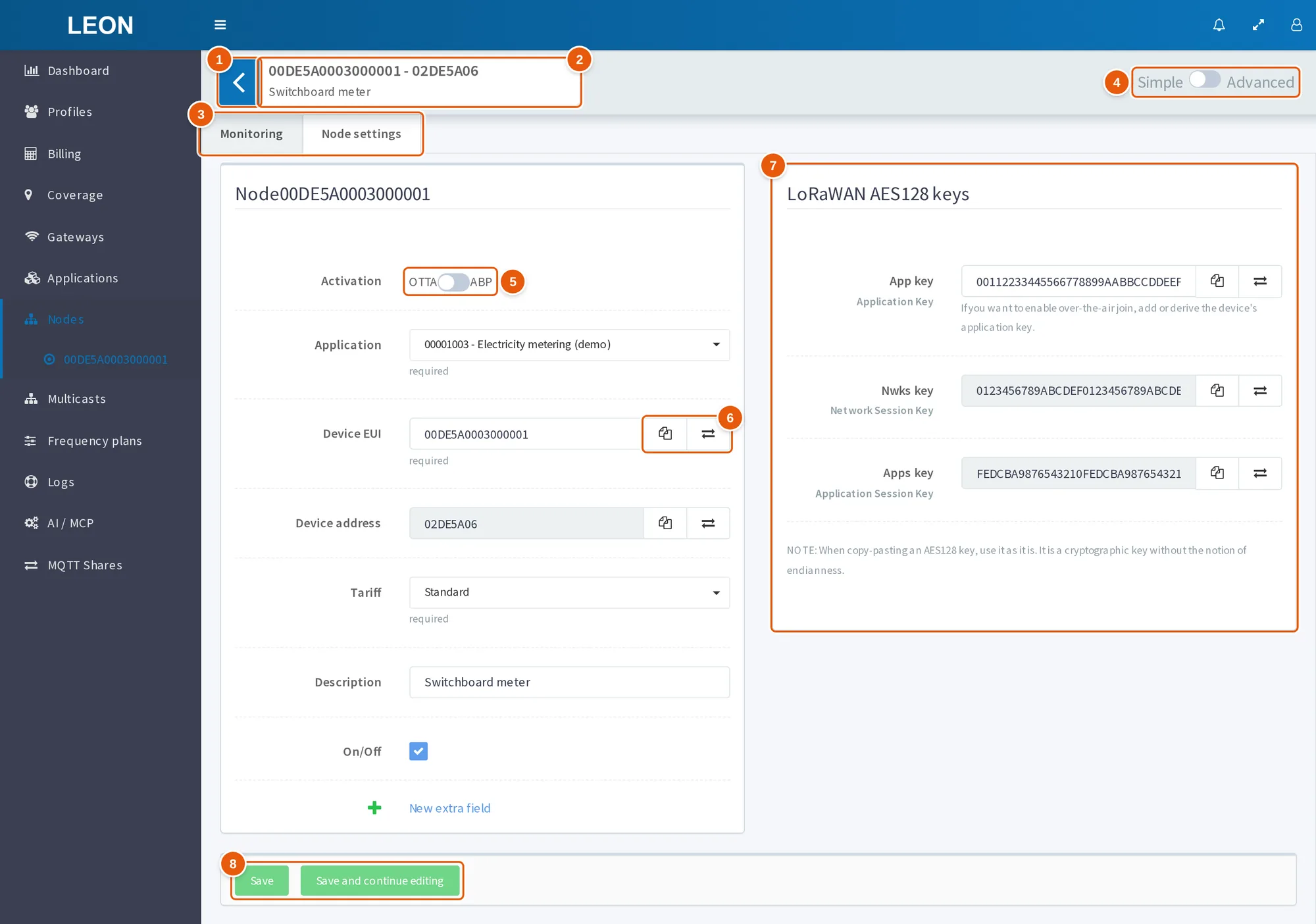
- "Back to nodes" — returns to the list.
- The "DevEUI - DevAddr" title and the node description.
- Tabs "Monitoring" and "Node settings".
- "Simple" / "Advanced" — the settings mode switch.
- "Activation" — the "OTTA" / "ABP" switch.
- Copy buttons — "Copy big endian" and "Copy little endian".
- The "LoRaWAN AES128 keys" block — App key, Nwks key and Apps key.
- "Save" and "Save and continue editing" — inactive until the form is changed.
| Field | What to enter |
|---|---|
| "Activation" | OTAA or ABP; the switch is labeled "OTTA" / "ABP" |
| "Application" | Start typing the name; options are shown as "app_id - name". Required |
| "Device EUI" | DevEUI, 16 hex characters. Required |
| "Device address" | DevAddr, 8 hex characters; editable only in ABP |
| "Tariff" | The node's tariff. Required |
| "Description" | Up to 255 characters |
| "On/Off" | Whether the node is on |
| Additional fields | Fields configured for nodes, if any |
Identifiers and keys are entered as uppercase hex digits. For lowercase letters the interface responds 'Enter a valid hexfigure with uppercase: e.g. "FF0022"', for a wrong length — "Minimum length is N characters (now M)".
The "LoRaWAN AES128 keys" block:
| Key | Label in the interface | Editable |
|---|---|---|
| App key | "Application Key" | In OTAA and ABP |
| Nwks key | "Network Session Key" | Only in ABP |
| Apps key | "Application Session Key" | Only in ABP |
The DevEUI, DevAddr and the three key fields each have two copy buttons: "Copy big endian" copies the value as shown, "Copy little endian" copies it with the byte order reversed. Under the keys the interface notes: "When copy-pasting an AES128 key, use it as it is. It is a cryptographic key without the notion of endianness."
Changing the tariff. A new tariff of an existing node takes effect from the next 00:00 UTC. Until then the card shows "Changed the tariff …" with the date and the new tariff, and the server rejects another tariff change with the error "Tariff can be changed no more than once a day".
Moving to another application. When an existing node's card is saved, the server does not apply a change of application. Move nodes with the bulk "Change" action, see Changing settings.
Saving. "Save" saves the node and returns to the list; "Save and continue editing" saves and keeps the card open. The buttons are visible only with the change right and stay inactive until the form is valid and changed. After saving, the node settings are passed to the network server.
Advanced mode: LoRaWAN parameters, place, sequence numbers, tags and variables
LoRaWAN node parameters
| Field | Values |
|---|---|
| "Node class" | A, B or C. Class B can be selected, but the interface help says it is not supported: the server sends no downlinks to such nodes, see Device classes |
| "Rx window" | Preferred receive window: RX1 or RX2 |
| "Region" | The node's frequency plan, 38 options. The icon next to the field opens "Frequency plan"; the channels and parameters of all plans are in Frequency plans |
| "Duty cycle" | A number; the server currently only stores the value |
| "ADR" | Whether ADR is on. Hint: "Only the end-device can enable / disable ADR" |
| "Adr interval" | 20 by default |
| "Adr min", "Adr max", "Adr fix" | Data rate (DR). Next to the number, the list shows the parameters and frame limit from the frequency plan, for example "DR3 — SF9BW125 — 115 B" |
| "Roaming support" | A switch |
| "Test device" | "Exempt from join-ban (test bench)". Staff and superuser only |
The server bans a device that sends join requests too often: by default for 1 hour, when a join arrives as the 20th within a sliding 600 seconds; the server rejects this join. The threshold and the ban duration are server launch parameters; the 600-second window is fixed. A join from an unregistered device also leads to a ban, and creating the device on the server lifts the ban. "Test device" exempts the node from this check — for example, on a test bench.
LoRaWAN sequence numbers
| Field | What it is |
|---|---|
| "Seq up" | Uplink frame counter (FCnt Up). For an existing node the server does not save a change |
| "Seq down" | Downlink frame counter (FCnt Down). It cannot be decreased: the server does not save a lower value |
| "Down queue" | For an existing node the server does not save a change |
| "Sequence check" | Strict or Relaxed |
Place
The "Place" block: a map, the "Latitude" and "Longitude" fields with the "Go" button, and buttons that add and remove a marker. The interface sends the location to the server as a GeoJSON point (longitude, latitude).
Tags and variables
An existing node has the "Tags" and "Variables" blocks — key/value pairs. The application's JS codec receives them as input.tags and input.variables; node tags override application tags with the same key.
Radio parameters and the MAC command log
The "Radio parameters" panel is available in the advanced mode for an existing node. It sets the desired parameters of the receive windows and channels, and the server brings the device to them with the MAC commands RXParamSetupReq, RXTimingSetupReq and NewChannelReq.
| Parameter | Values |
|---|---|
| "RX2 data rate (DR)" | DR0–DR7 or "Band default (…)" |
| "RX1 DR offset" | 0–7 |
| "RX1 delay" | 1–15 seconds |
| "RX2 frequency, Hz" | Within the frequency plan, 100 Hz steps; empty means the plan value |
| "Extra channels" | Up to 5 channels: frequency, min DR and max DR; empty means the band's channels. Not supported for US915 and AU915 |
Under the parameters, the "Actual" line shows the value confirmed by the node; RX2 data rate, offset, delay and channels also show a state:
| State | Meaning |
|---|---|
| "Pending ACK" | The server is waiting for the node's confirmation |
| "Rejected (n)" | The node rejected the command n times (2 or more); the server has stopped trying |
| Check mark | The node confirmed the value; channels have no check mark |
| "—" | The node has not exchanged MAC commands with the server yet |
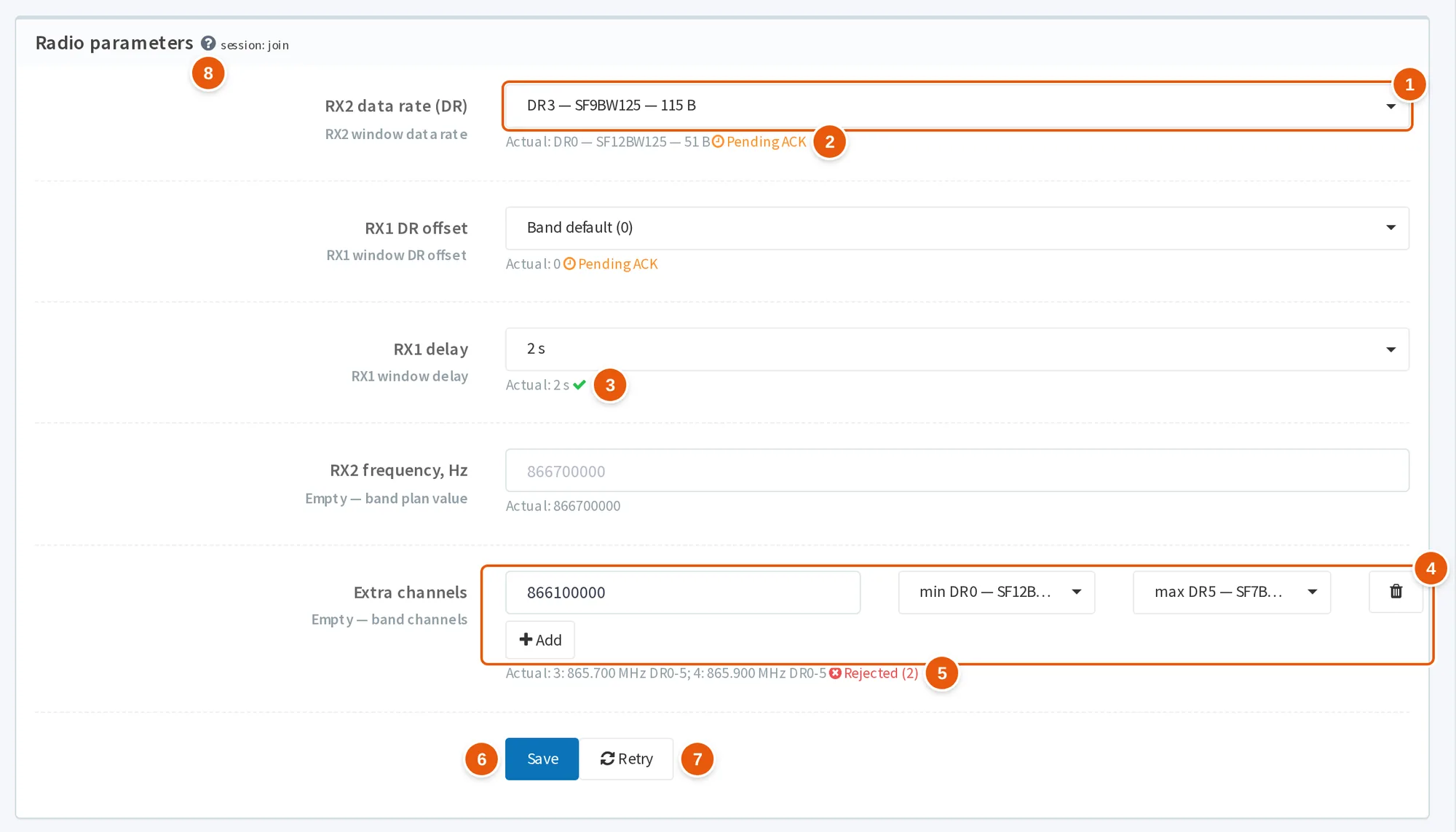
- "RX2 data rate (DR)" — the desired value: DR3 instead of the band default.
- "Pending ACK" — the server is waiting for the node's confirmation; the "Actual" line shows the previous value DR0.
- Check mark — the node confirmed the "RX1 delay" of 2 s.
- "Extra channels" — the channel frequency, min DR and max DR; "Add" adds another channel, up to 5.
- "Rejected (2)" — the node rejected the channel twice; the server stopped trying.
- "Save" — saves only the radio parameters.
- "Retry" — resets the rejection counter and sends the MAC commands again.
- The "?" icon — the "How radio parameters work" help with an example for a class C node.
- The panel's "Save" button saves only the radio parameters.
- Changes go out with the next downlink exchange and take effect only after the node confirms; until then the node works with the previous parameters.
- After 2 rejections by the node the server stops trying. "Retry" resets the rejection counter and sends the MAC commands again.
- After a re-join the server applies the settings again.
An example from the interface help: a class C node on KZ865 needs a long configuration written. Raise RX2 to DR3 — the frame limit grows from 51 to 115 bytes; write the configuration and set it back to "Band default".
The server validates the values on save:
- RX1 delay is 1–15 seconds, the DR offset is 0–7;
- at most 5 channels; for each, min DR and max DR are integers 0–15, and min DR is not greater than max DR;
- RX2 and channel frequencies must be within the frequency plan, and the DR must be a LoRa data rate of this plan: the server does not accept FSK and LR-FHSS data rates, see Data rates and payload size;
- extra channels are refused for US915 and AU915;
- when the region changes, saved values must fit the new plan, otherwise the server responds "Saved value is outside the band plan of the new region; change or clear it".
The "MAC command log" on the "Monitoring" tab shows the MAC command exchange with the node: time, MAC command (name and 0xCID), direction (Req or Ans), payload, status (sent, acked, rejected, unsolicited) and ACK. The log can be filtered by command type and is paged.
The Monitoring tab
| Block | What it shows |
|---|---|
| "Node status" | "Noise margin" and "Battery" charts. Instead of the battery level it may show "In charge" or "No actual data"; with external power there is no battery chart |
| Network state charts | RSSI, LSNR, bubble charts, frequencies, number of messages |
| "Packet loss rate" | A loss table |
| FCnt chart | The frame counter |
| "Current data" | The panel with the tables below. The "Refresh in" button turns auto-refresh on and off; the interval in seconds is set in the field next to it, 10 by default |
| "Gateways in range" | Gateway, RSSI (dBm), SNR (dB), "Seen". Built from up to 100 latest uplinks no older than one month |
| "Data" | The node's frames, see below |
| "Adr log" | The ADR log |
| "MAC command log" | See the previous section |
Columns of the "Data" table: time, frequency (MHz), message type (JR, JA, UDU, UDD, CDU, CDD, RFU, Proprietary), FCnt, FPort, RSSI (dBm), LSNR (dB), SF, size, airtime (ms), bandwidth (kHz), MAC, direction (Uplink or Downlink), data, downlink acknowledgement status (from Scheduled to GPS Unlocked) and acknowledgement time.
- The flask icon decodes the data with the application codec; if there is no codec, it shows "No codec set for this application".
- Filters: message types, directions, period (whole days). Day boundaries and the times in the table use the browser's time zone.
- Rows per page: 10, 25, 50 or 100.
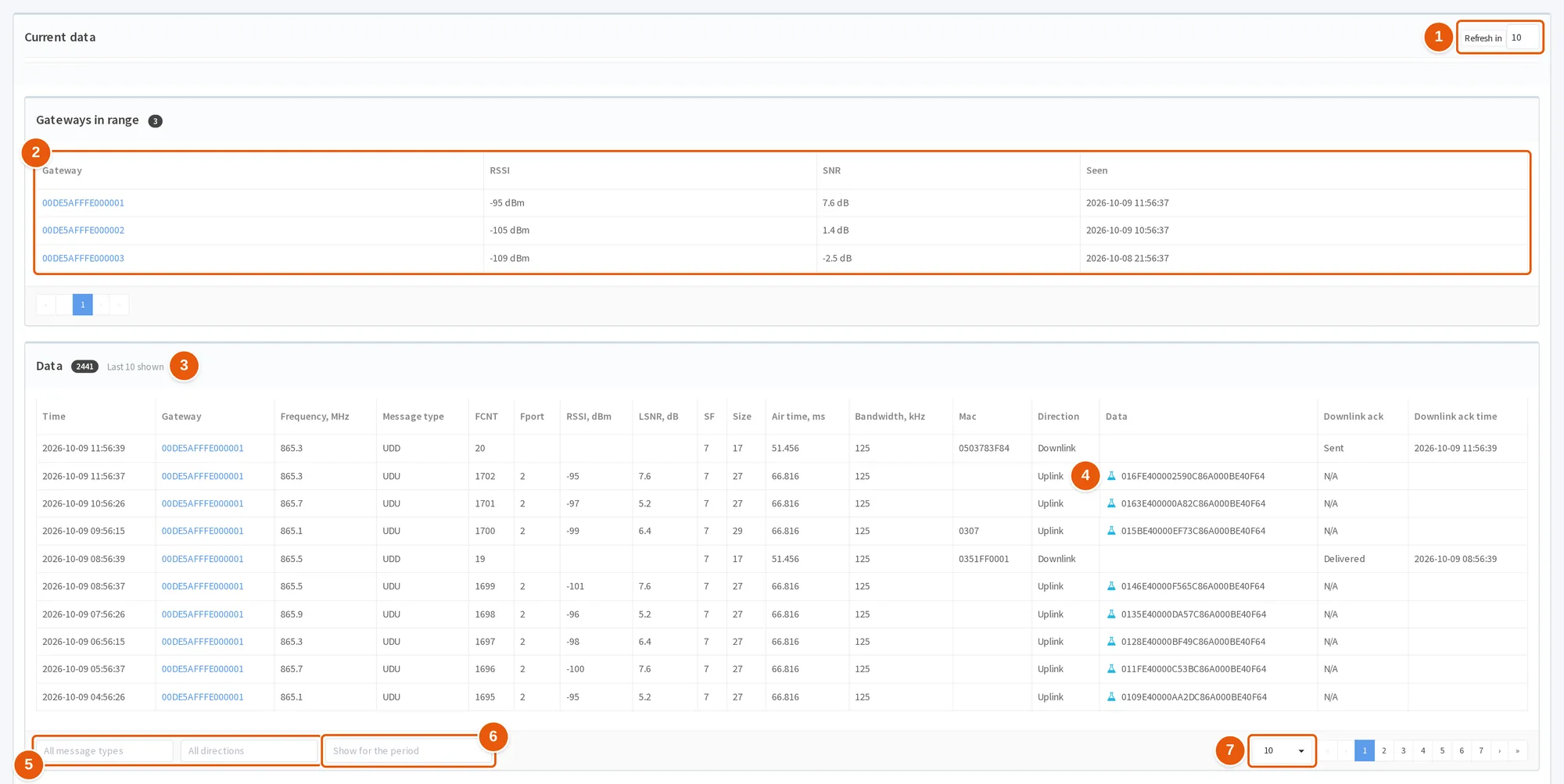
- "Refresh in" — auto-refresh; the interval in seconds is in the field next to it.
- "Gateways in range" — gateway, RSSI, SNR and "Seen".
- "Data" — the node's frames; the badge shows their number.
- Flask icon — decodes the data with the application codec.
- Message type and direction filters — "All message types" and "All directions".
- "Show for the period" — the period in whole days.
- Rows per page — 10, 25, 50 or 100.
Good to know
- With an empty search, "Select all" affects only the nodes checked on the page.
- A node can be moved to another application only with the bulk "Change" action.
- An OTAA node gets a new DevAddr and session keys at every join; when an OTAA node is changed, the server does not save these fields from the form.
- For an existing node the server does not save changes to "Seq up" and "Down queue" and does not let "Seq down" decrease.
- The server currently only stores "Duty cycle".
- The tariff can be changed no more than once a day; the new tariff takes effect at 00:00 UTC.
- The export file contains the device keys in clear text.
See also
- Applications — the applications nodes belong to, and the rights on them.
- Device classes — how classes A, B and C differ and which ones ONS supports.
- Frequency plans — channels, the RX1 and RX2 windows and data rates of all 38 plans.
- Create device — registering a device through the WebSocket API.
- Sending data to a device — how to send a downlink through the WebSocket API.